
1.Signing in
Studio Center creates your account and emails you your sign-in details when your first project starts.
- Go to studiocenterauditions.com.
- Enter your username and password, then click Sign in.
- If you see a “Verify you are human” box, tick it. Most of the time the check happens invisibly.
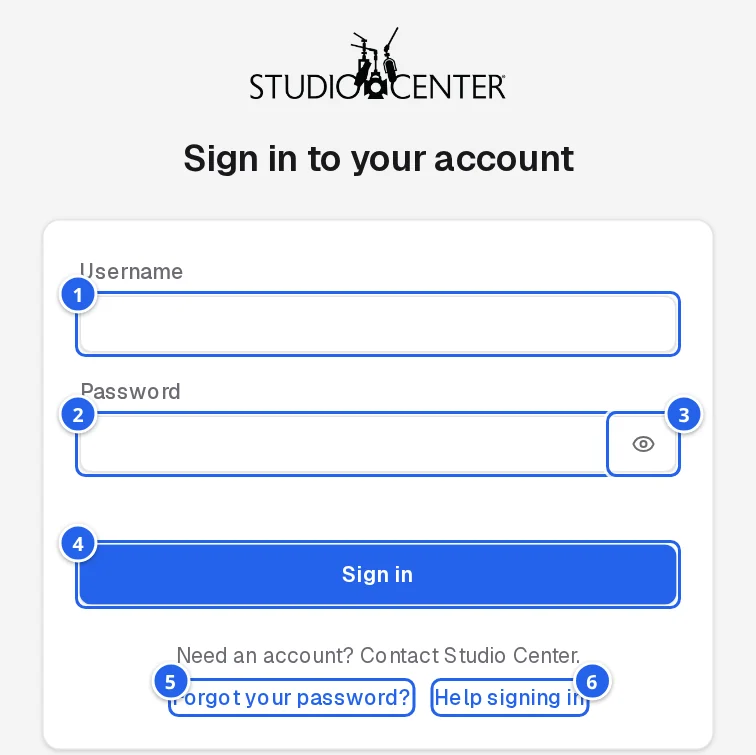
- 1Username: the one from your welcome email (not your email address).
- 2Password.
- 3Show / hide the password as you type.
- 4Sign in.
- 5Forgot your password? Get a reset link by email.
- 6Help signing in opens this section of the guide.
Forgot your password
- Click Forgot your password? on the sign-in page.
- Enter your username and click Send reset link.
- Open the email and follow the link to choose a new password.
2.Your projects
After you sign in, you'll see the projects you're part of.
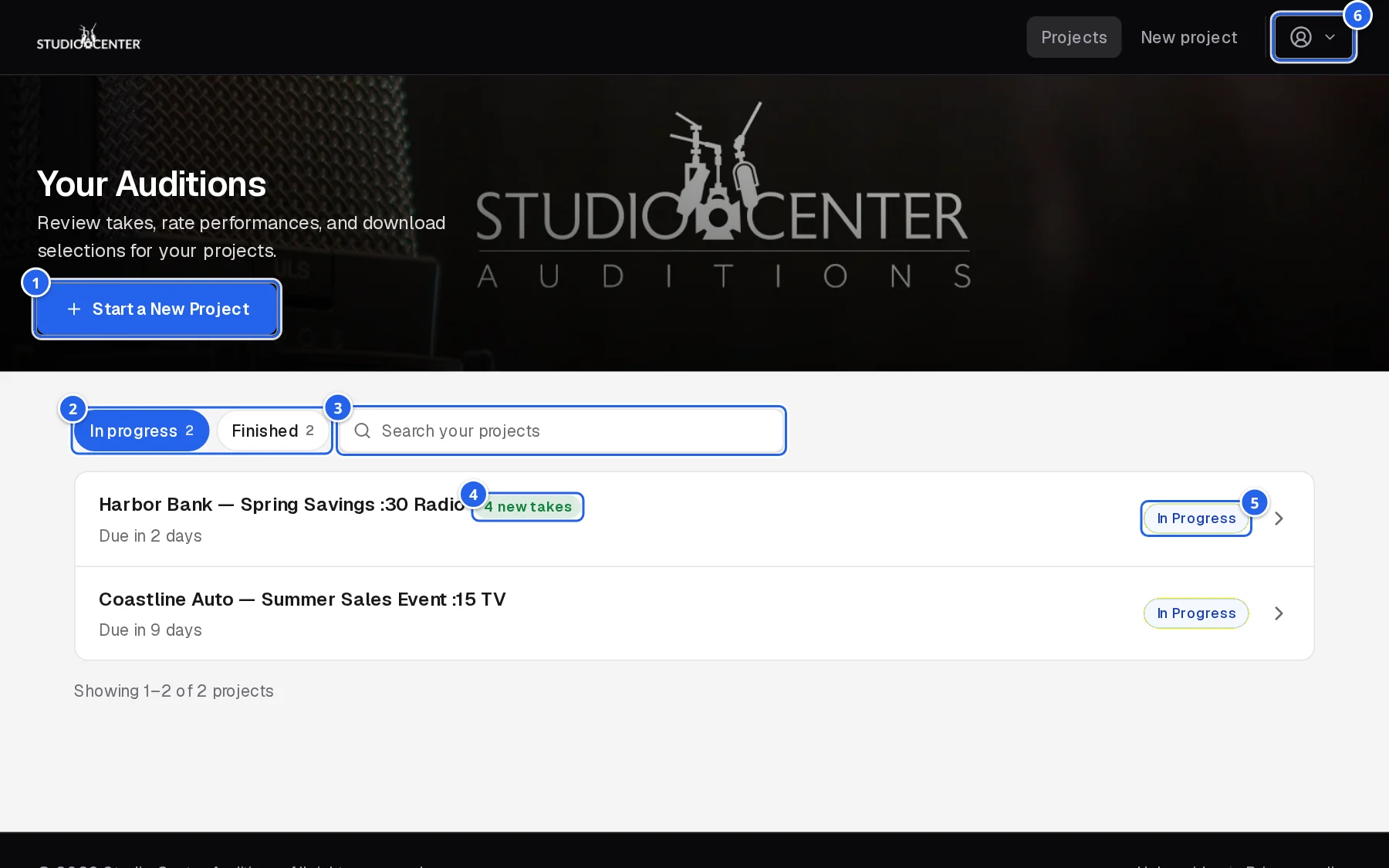
- 1Start a New Project: ask us to cast something new (see section 12).
- 2In progress / Finished: projects still collecting auditions (due soonest first), and ones that have closed (most recent first). The number is how many are in each.
- 3Search by project title or status.
- 4New takes: how many auditions arrived since you last opened that project, on any device you sign in from.
- 5Status: In Progress while we're collecting auditions; Auditions complete once casting has closed.
- 6Account menu: theme, this guide, settings, and sign out (see section 13).
Click a project to open it.
3.Reviewing takes
Each project page lists every audition (take) we've posted for you. New takes appear throughout the day until the deadline, right on the page as we post them; you don't need to reload.
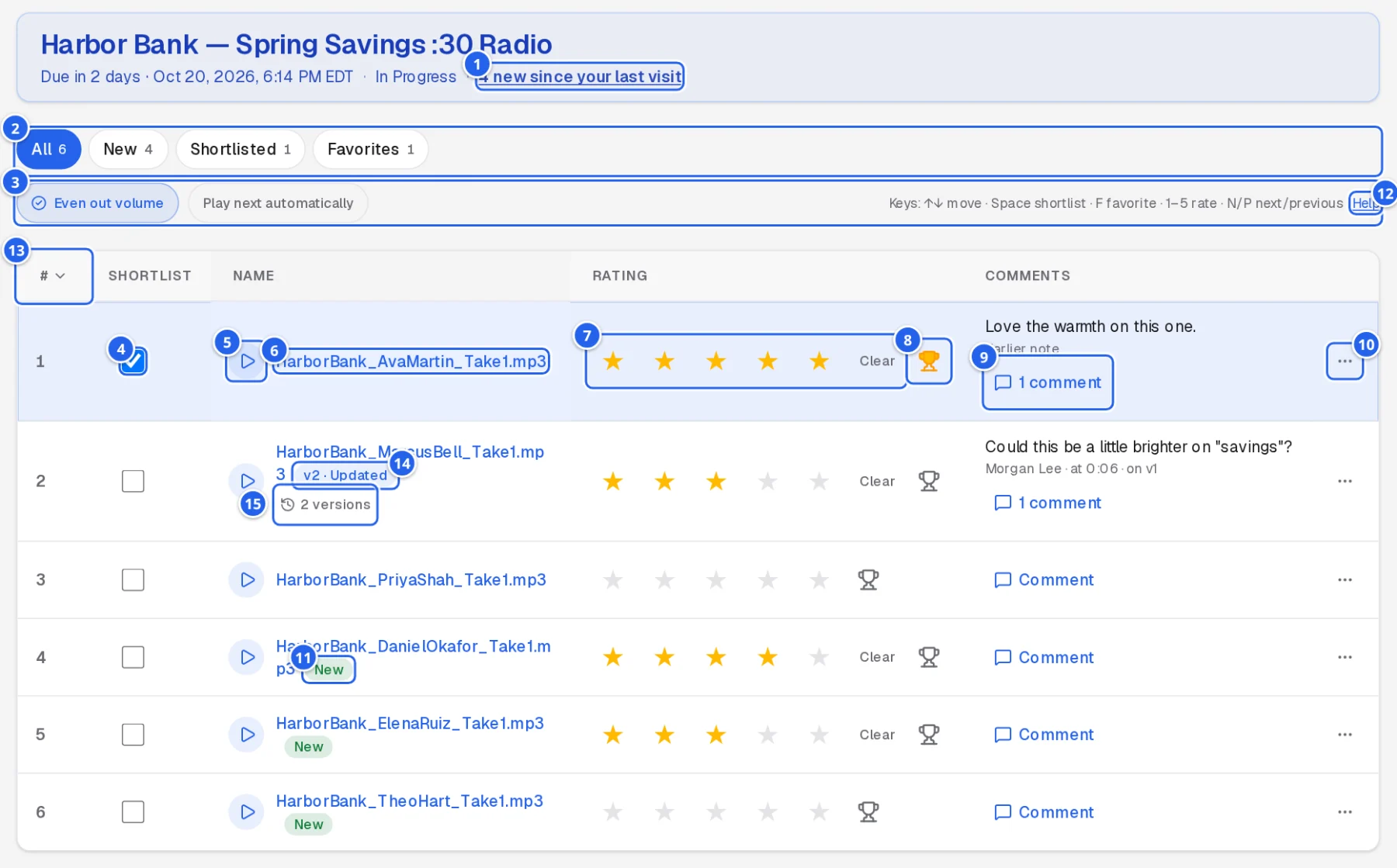
- 1How many takes arrived (or got a new version) since your last visit. Click it to see just those.
- 2Views: All, New, Shortlisted, Favorites, and Hidden (once you hide a take), each with a count.
- 3Even out volume plays louder takes quieter so you judge every read at the same level. Play next automatically starts the next take when one ends (see section 5).
- 4Shortlist the takes you want to book or download together (see section 6).
- 5Play (see section 5).
- 6File name: click to download that one take.
- 7Rating: click a star (1 to 5). Clear removes your rating. Ratings are yours; others on your team rate separately.
- 8Favorite: marks the take with a trophy and adds it to your shortlist.
- 9Comments: the latest comment on the take; click to read them all or add one (see section 4).
- 10⋯: Hide this take if it isn't a fit (bring it back from the Hidden view), or Download this take.
- 11New: added since your last visit.
- 12A reminder of the keyboard shortcuts; Help opens section 11.
- 13#: each take's number, so you can tell us “we like #4”. Takes are listed in number order, as our team arranged them.
- 14v2 · Updated: we've posted a new version of this take (for example, a re-read you asked for) since your last visit.
- 152 versions: play and compare every version (below).
Click the #, Name or Rating heading to sort by it; click again to reverse. On a phone, use the sort menu above the takes.
Versions of a take
When you ask for another read, we add it to the same take as a new version, so its number, your rating, shortlist and comments stay with it. Click 2 versions to hear them side by side.
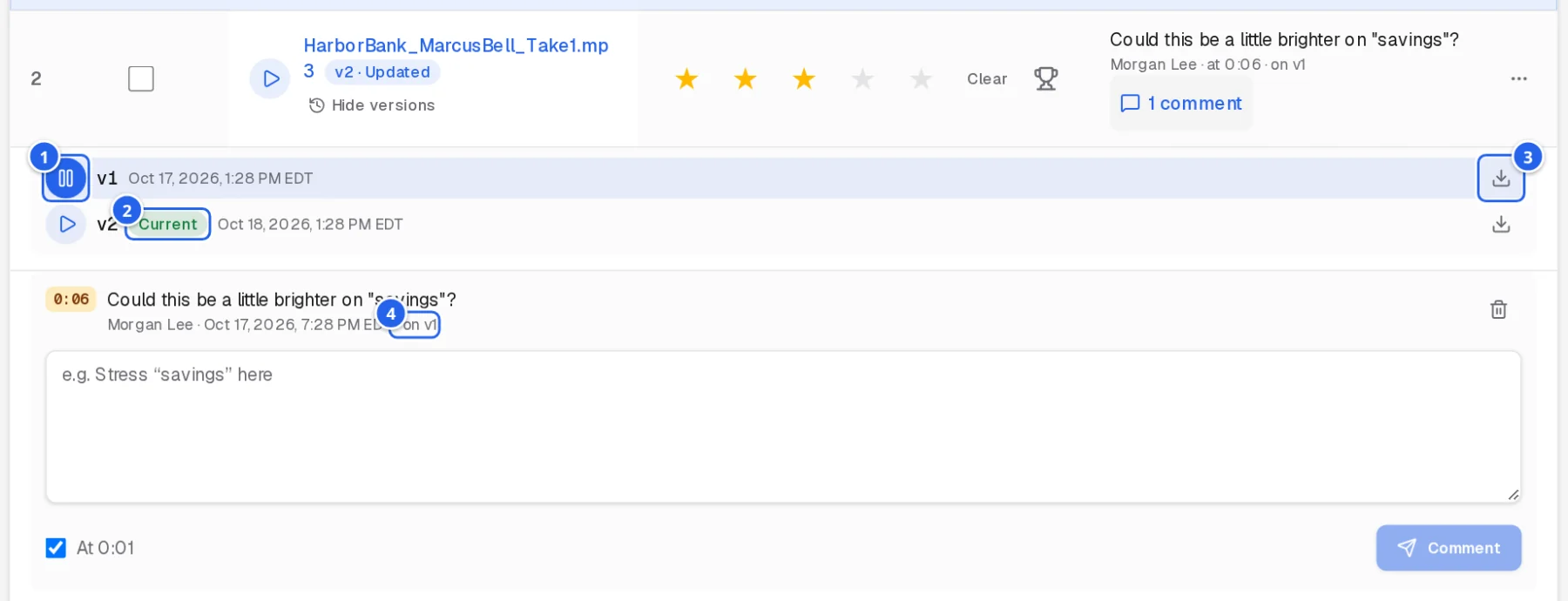
- 1Play any version; it plays in the same player at the bottom of the page.
- 2Current: the latest version, the one you hear when you click the take's own Play and the one included when you download or book.
- 3Download a version.
- 4Comments say which version they were about (“on v1”). A comment you write while an earlier version is playing is saved for that version.
5.Listening
Click Play on any take. A player opens along the bottom of the page and stays there while you scroll, so you can keep rating and shortlisting as you listen.

Starting another take stops the one that's playing, so you never hear two at once. With Play next automatically on, the player moves down the list by itself; press N or P to skip ahead or back.
6.Booking talent
- Tick Shortlist on the takes you want to book (favorites are added automatically). The Shortlisted view shows just those.
- In the bar at the bottom of the page, click Book N shortlisted.
- In Book Auditions, check the takes in the list (you can play them again here), then click Book.
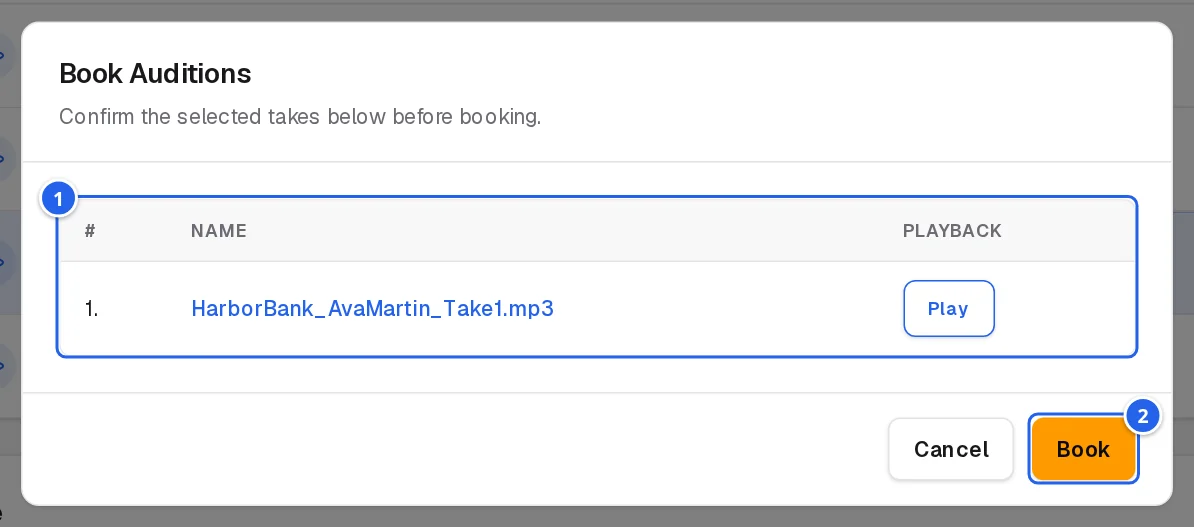
- 1The takes you're about to book.
- 2Book confirms. Cancel goes back without booking.
Booked takes are marked Booked, the project shows Auditions complete, and our team is notified right away. You'll get an email confirming your selections, and we'll contact you about scheduling.
7.Downloading files
To download one take, click its file name (or use ⋯ › Download this take). To download several at once as a zip file, click Download in the bar at the bottom of the page:
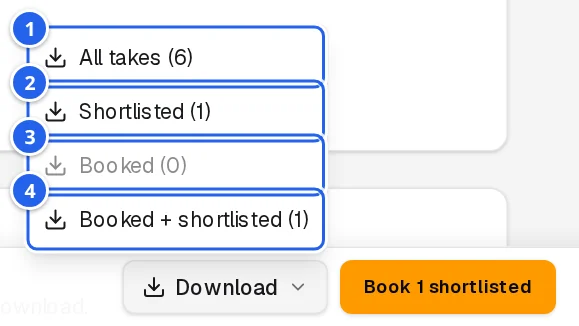
- 1All takes on the project.
- 2Shortlisted: only the takes on your shortlist.
- 3Booked: only booked takes.
- 4Booked + shortlisted: both together.
The number next to each choice is how many takes it includes; choices with nothing in them are greyed out. Large zips can take a moment to prepare before the download starts.
8.Sharing takes
Below the takes, you can send them somewhere else, or let colleagues without an account listen.
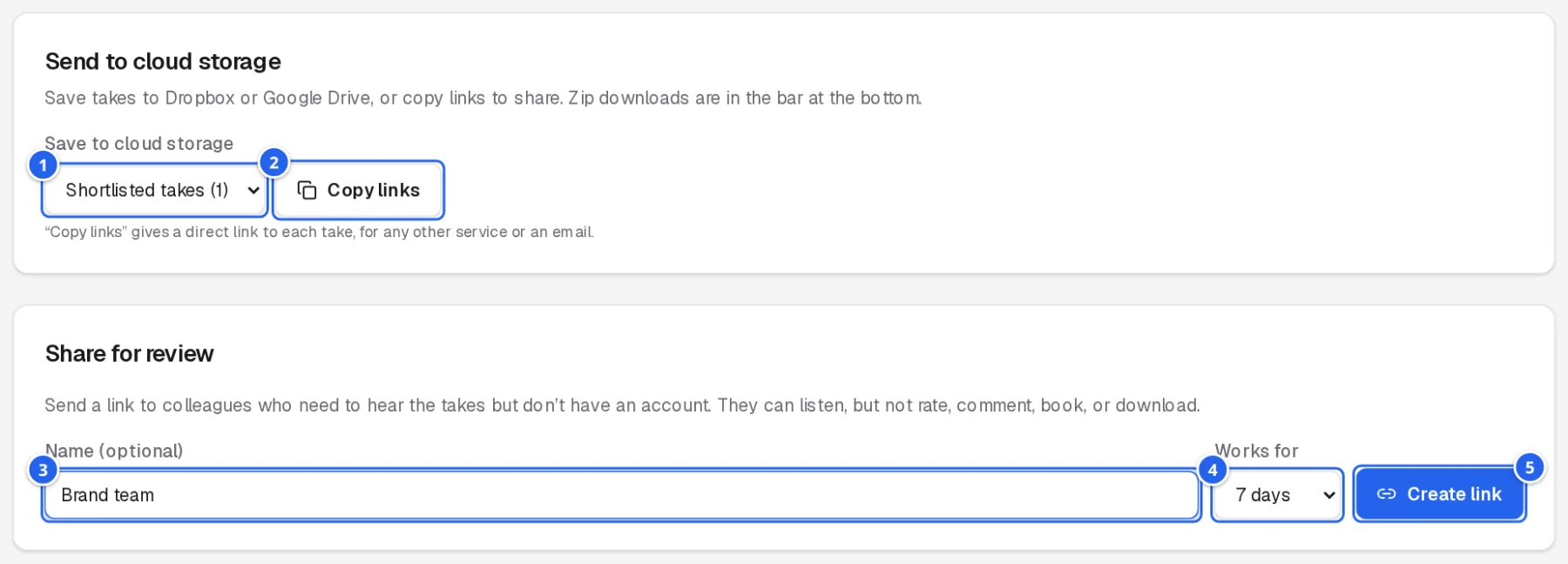
- 1Which takes to send: all, shortlisted, booked, and so on.
- 2Copy links: copies a direct link to each of those takes, to paste into an email or another service. Save to Dropbox and Save to Google Drive appear here too when they're available.
- 3Share for review: give the link a name so you remember who it's for (optional).
- 4Works for: how long the link lasts (3 to 30 days).
- 5Create link, then copy it straight away: it's only shown once.
People with a review link can play the takes, with the same player, but can't rate, comment, book, or download. Links you've made are listed in the same panel; Turn off stops one working.
9.Notes for our team
Use Notes for Studio Center at the bottom of the project page for feedback about the whole project. For feedback on one take, comment on it instead (section 4).
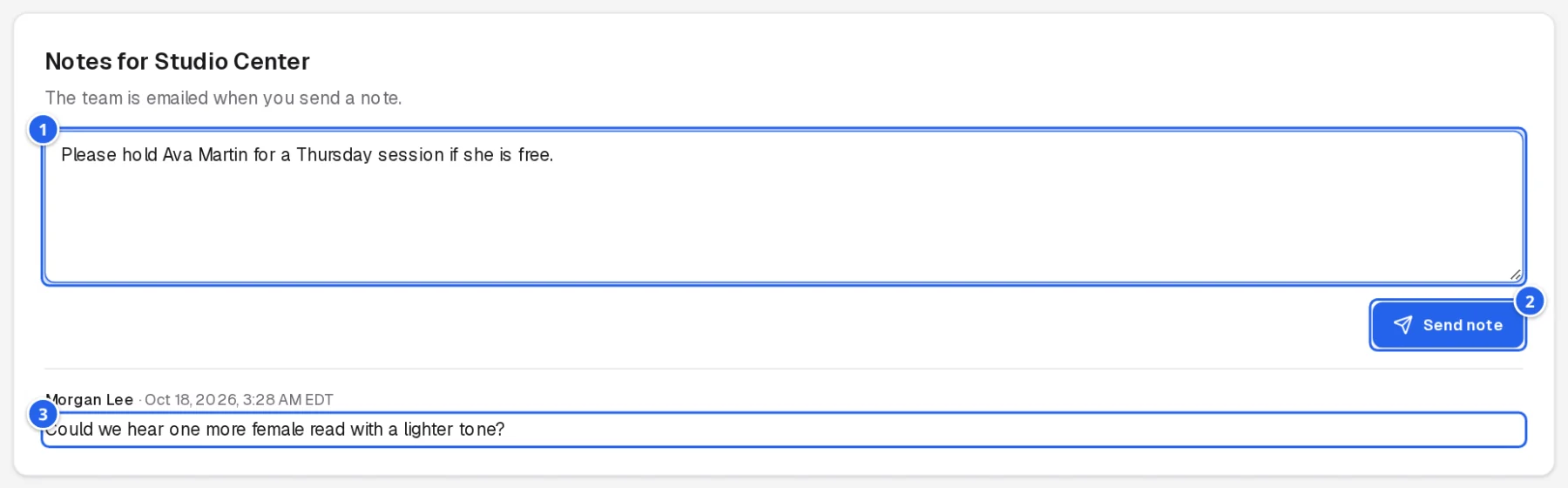
- 1Type your note.
- 2Send note: the note is saved to the project and emailed to our team.
- 3Notes you've already sent, with the date and who wrote them.
10.On your phone
Everything works on a phone. Each take is a card with the full file name and the same controls as on a computer:
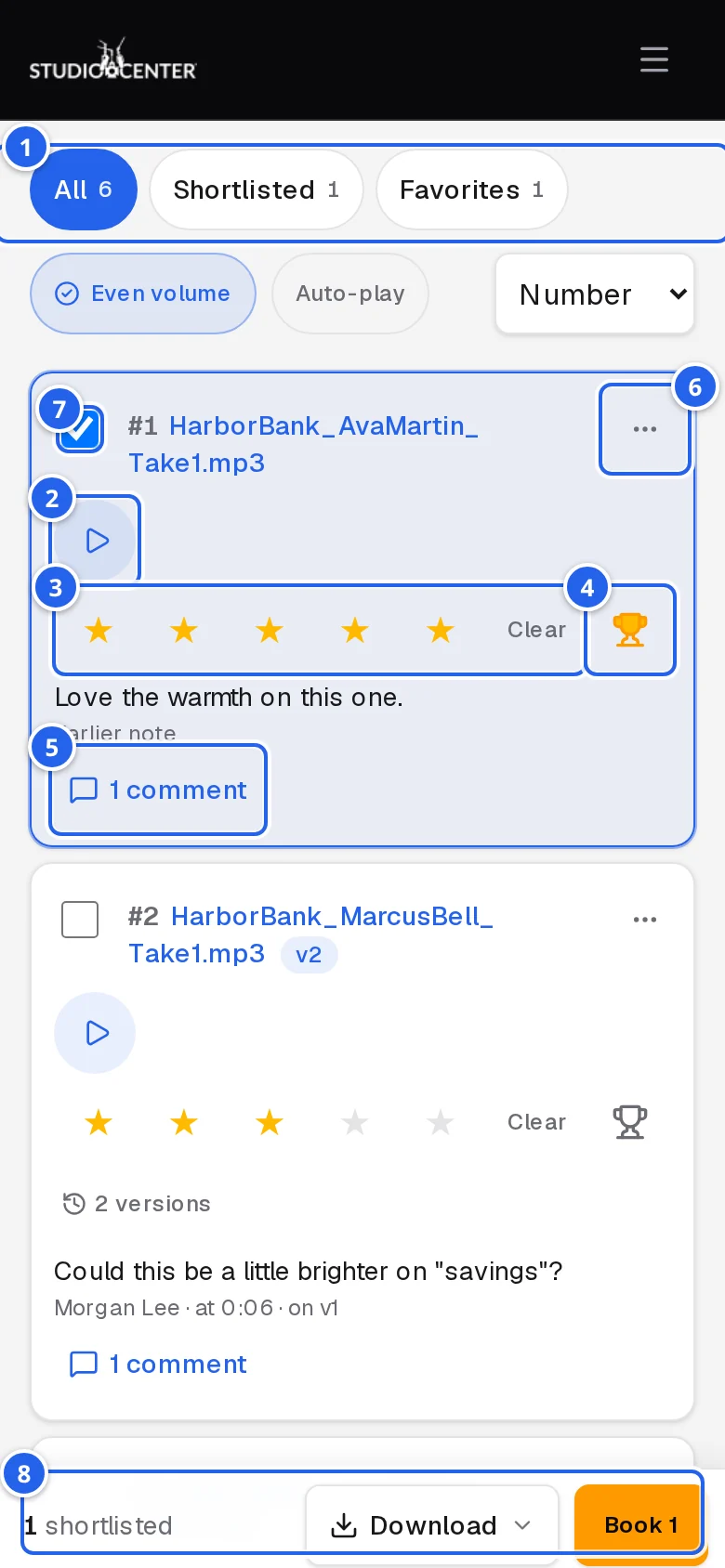
- 1Views: All, New, Shortlisted, Favorites, Hidden.
- 2Play: the player opens along the bottom.
- 3Rate. Clear removes your rating.
- 4Favorite.
- 5Comments.
- 6⋯: hide or download the take.
- 7Shortlist.
- 8The bar at the bottom: your shortlist, Download and Book without scrolling.
The top bar folds into the ☰ menu, which also holds your account options (section 13).
11.Keyboard shortcuts
On a computer, you can review a project without the mouse. The highlighted row is the one the keys act on. A short reminder sits just above the takes list.
| Key | Does |
|---|---|
| ↑ ↓ | Move between takes |
| Space | Add the take to your shortlist, or take it off |
| F | Favorite or unfavorite |
| 1 to 5 | Rate the take; 0 clears your rating |
| N / P | Play the next / previous take |
Shortcuts pause while you're typing in a comment or note.
12.Requesting a new project
Anyone can ask us to cast a new project at studiocenterauditions.com/new-project; no account needed. If you're signed in, click Start a New Project (or New project in the top bar) and your details are already filled in.
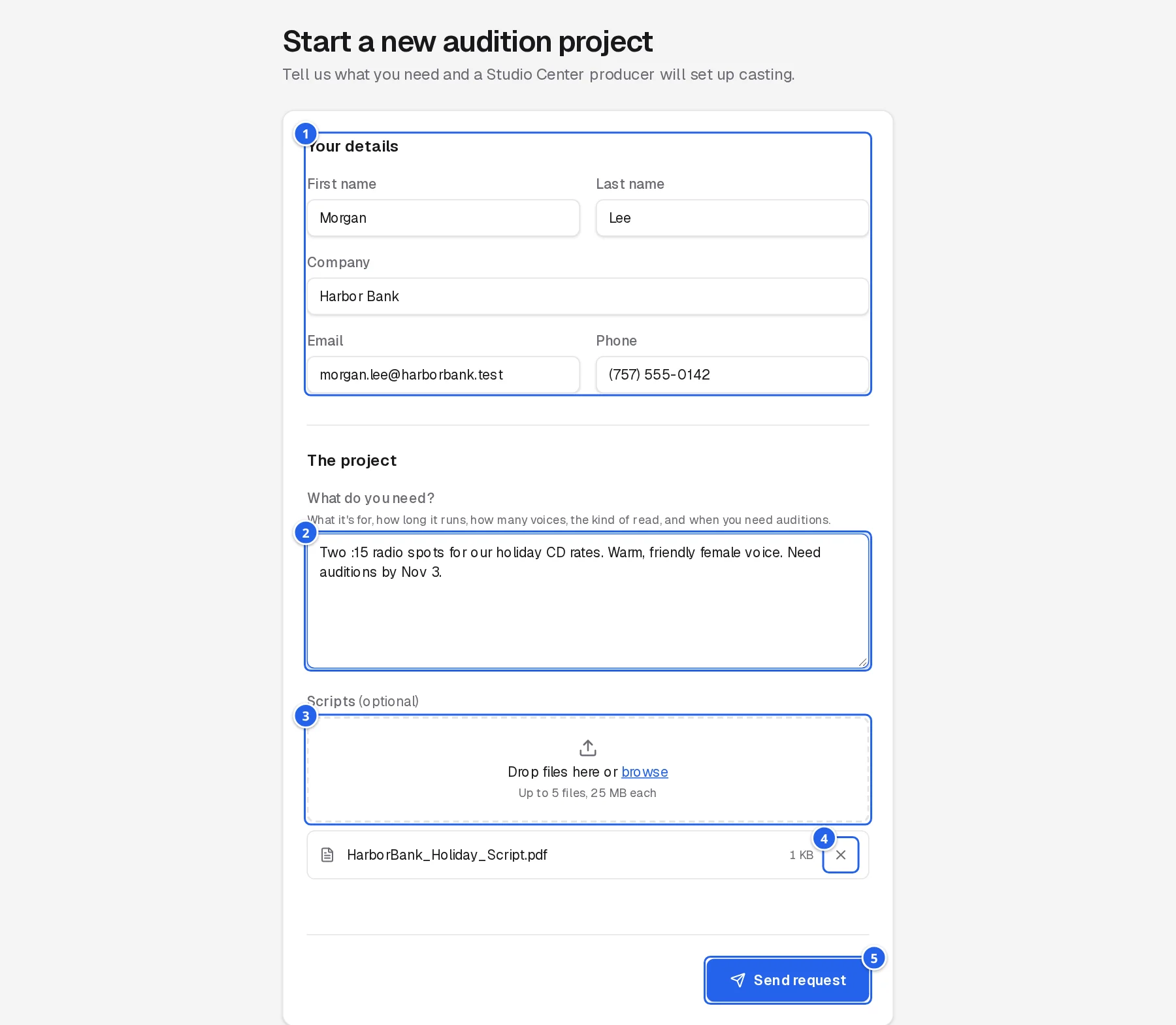
- 1Your details: name, company, email, and phone, so we can reach you.
- 2What do you need? What it's for, how long it runs, how many voices, the kind of read, and when you need auditions.
- 3Scripts (optional): drop files here or browse; up to 5 files, 25 MB each.
- 4Remove a file you added by mistake.
- 5Send request.
Your request goes straight to our team, and a producer will be in touch to set up casting. If a “Verify you are human” box appears, tick it before sending.
13.Your account
Click the person icon at the right of the top bar to open the account menu. On a phone, tap ☰; the same options are listed there.
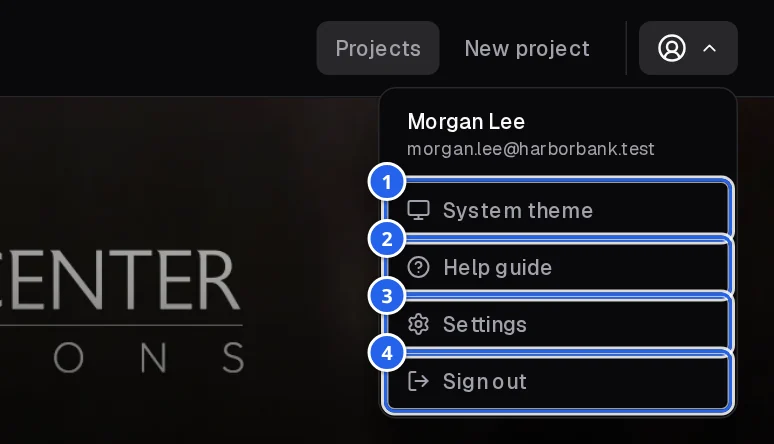
- 1Theme: each click switches between light, dark, and matching your device.
- 2Help guide: opens this guide in a new tab.
- 3Settings: your profile (below).
- 4Sign out.
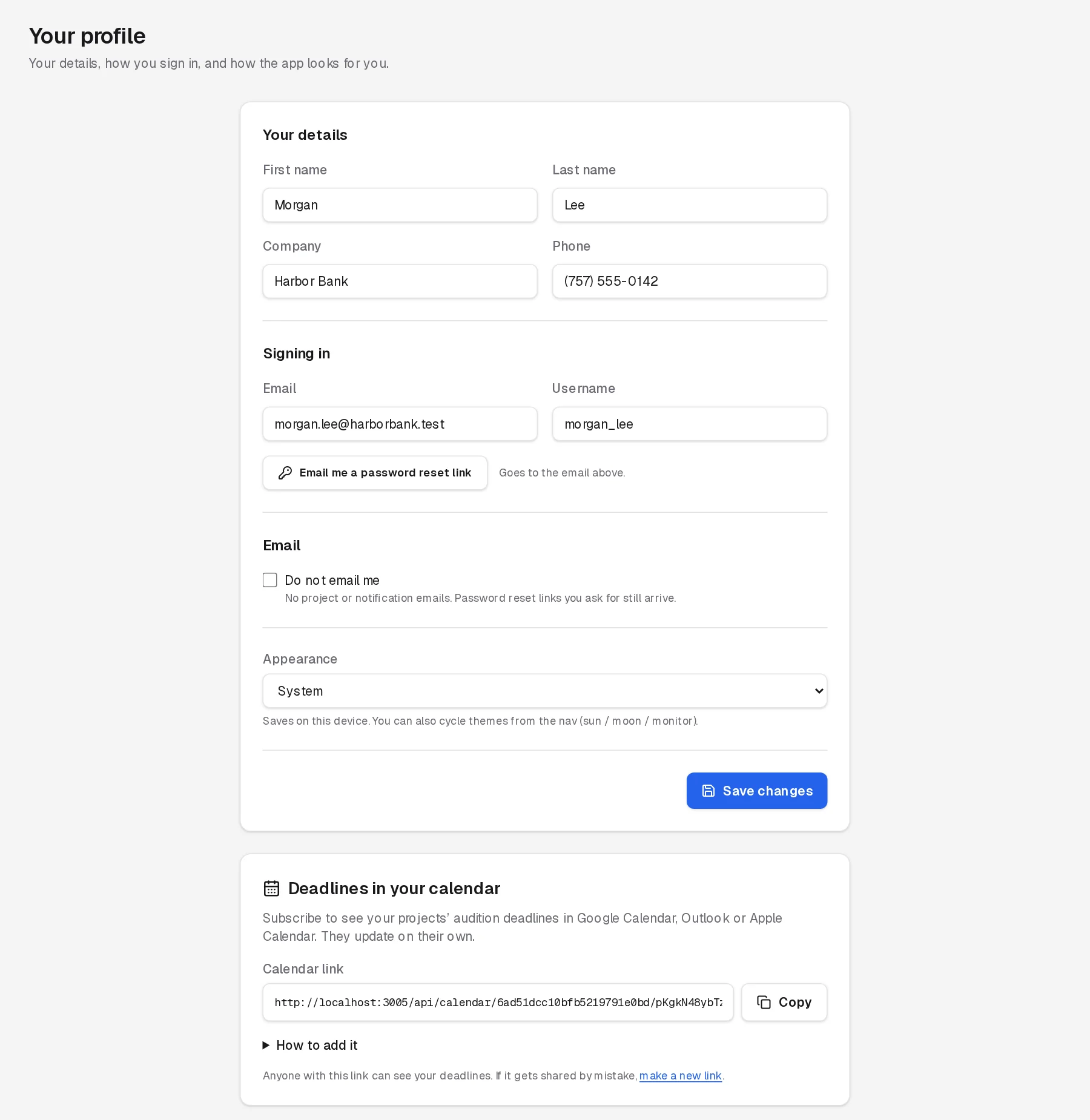
Settings opens Your profile:
- Your details: name, company, and phone; keep these current so we can reach you.
- Signing in: your email and username; Email me a password reset link sends a link to set a new password.
- Do not email me: stops project and notification emails from us. Password reset links you ask for still arrive.
- Appearance: light, dark, or match your device.
- Deadlines in your calendar: a private link that adds your projects' due dates to Google Calendar, Outlook, or Apple Calendar. Make a new link turns the old one off.
14.Troubleshooting
Sign-in says to wait
After several sign-in attempts in a row, sign-in pauses for a minute to protect your account. Wait a minute, then try again, or reset your password.
“Studio Center Auditions has been updated”
When we release a new version of the site, a page you already had open shows this message with a Reload button. Click Reload to carry on. If something you just did didn't work, do it again after reloading.
A project is missing
You only see projects you've been added to. If a colleague can see a project you can't, ask your Studio Center producer to add you. Closed projects are under Finished.
A take won't play
Check your device's volume and that the browser tab isn't muted, then try again. If one particular take never plays, comment on it and we'll take a look.
Still stuck?
Contact your Studio Center producer, or visit studiocenter.com. You can get back to this guide any time from Help guide in the account menu or at the bottom of every page.
4.Comments on a take
Tell us what you think of a particular read: “love the warmth”, “can she try it slower?”. Our team sees each comment and can reply right under it.
Comments pinned to a moment show as marks on the player's waveform (for the version they were about). Click 1 comment (or Comment) again to close the thread.