
1.Signing in & two-factor authentication
Staff sign in at studiocenterauditions.com with their username and password, the same way clients do (see the client guide).
Turning on two-factor authentication (2FA)
Admins and producers can protect their accounts with a code from an authenticator app (Google Authenticator, 1Password, and so on).
- Open Settings from the account menu and follow Two-step sign-in (or go to Account security), then click Enable two-factor authentication.
- In your authenticator app, add an account and enter the secret shown under Add this secret to your authenticator app (or paste the
otpauth://link below it if your app accepts one). - Type the 6-digit code from the app into Verification code and click Confirm and enable.
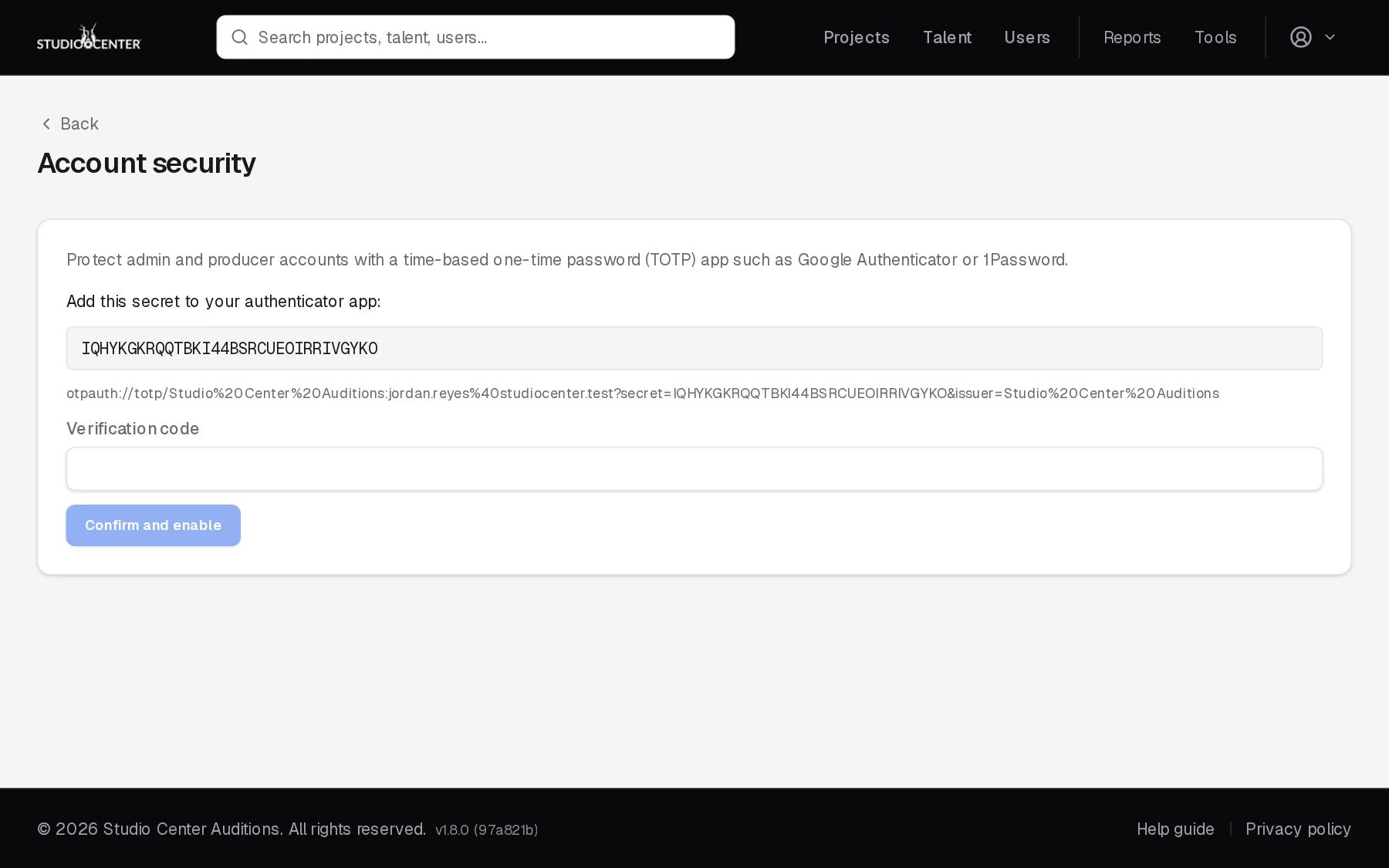
From then on, after your password you'll be asked for an Authentication code. Once verified, that browser won't ask again for 12 hours. To turn 2FA off, use Disable 2FA on the same page.
2.The dashboard & header
Your home page after signing in: what needs attention today.
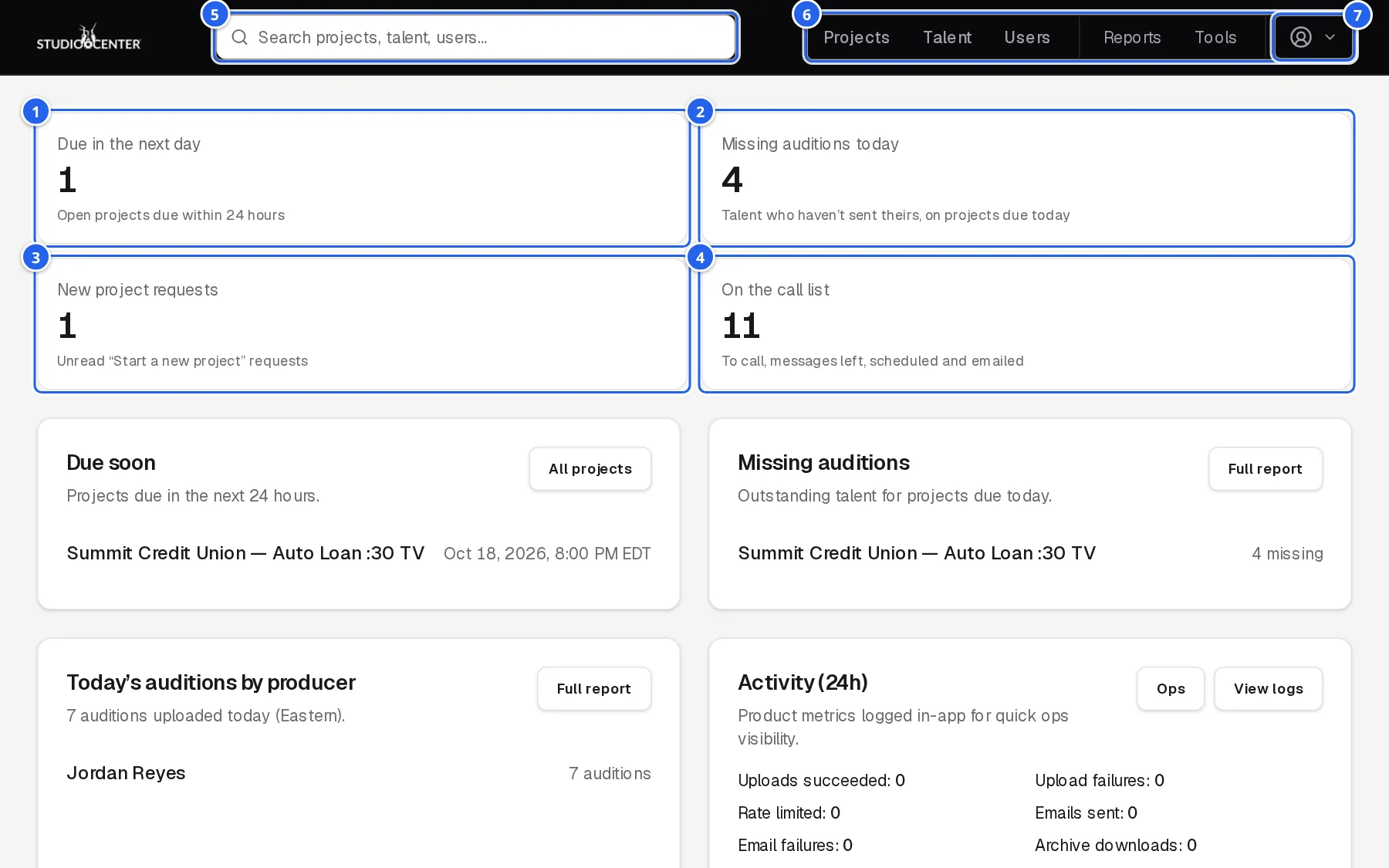
- 1Due in the next day: open projects due within 24 hours.
- 2Missing auditions today: talent who haven't sent theirs, on projects due today.
- 3New project requests: unread “Start a new project” requests.
- 4On the call list: talent to call, with messages left, scheduled, or emailed.
- 5Search projects, talent, and users from any page.
- 6The header: Projects, Talent (with Typecasts), and Users; then Reports and Tools.
- 7Account menu: theme (light, dark, or match your device), View client portal, Help guide (this guide), Settings, and Sign out.
Below the tiles: projects due soon, missing auditions, today's auditions by producer, recent activity, coordinator stats, the call list (each count opens that tab), and recent projects, each with a link to the full report or tool.
3.The projects list
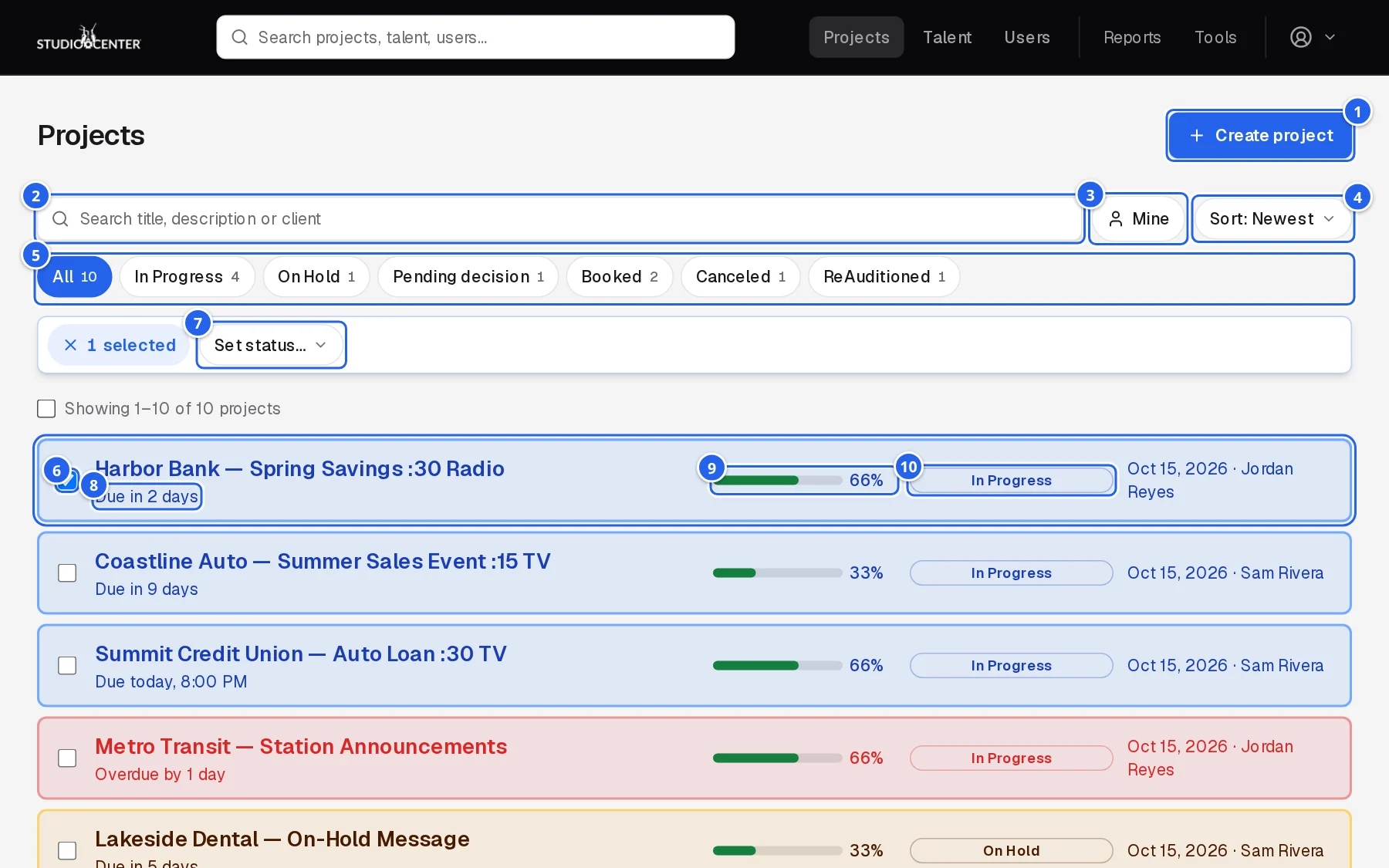
- 1Create project (see section 4).
- 2Search titles, descriptions, and client names and emails.
- 3Mine: only projects you own.
- 4Sort: newest or oldest, due date, title, or status.
- 5Status tabs with counts. The tab you pick is remembered.
- 6Tick projects (or the box above the list for the whole page) to change several at once.
- 7Set status… for everything ticked; × clears the selection.
- 8Due: “Due in 2 days”, “Due today”, or “Overdue by…” for open projects; hover for the exact time.
- 9Phases progress.
- 10Status.
The list keeps itself up to date: when anyone changes a project's status, due date or title, or adds or deletes a project, it changes here without reloading.
Row colors
Each row's color shows its status at a glance:
| In Progress | Collecting auditions. |
| Overdue | In progress and past its due time. |
| On Hold | Paused. Projects set to No Sounders – Approved are amber too. |
| Booked / Closed – Pending Client Decision | Casting finished. |
| Canceled | Canceled. |
| ReAuditioned / Dead | Replaced by a new project, or abandoned. |
4.Creating a project
A new project is one page: Basics, Description & specs, Clients, Files, and Talent. To start from a client's request, click Create project on it in New project requests (see section 15); the description, scripts, and matching client come with it.
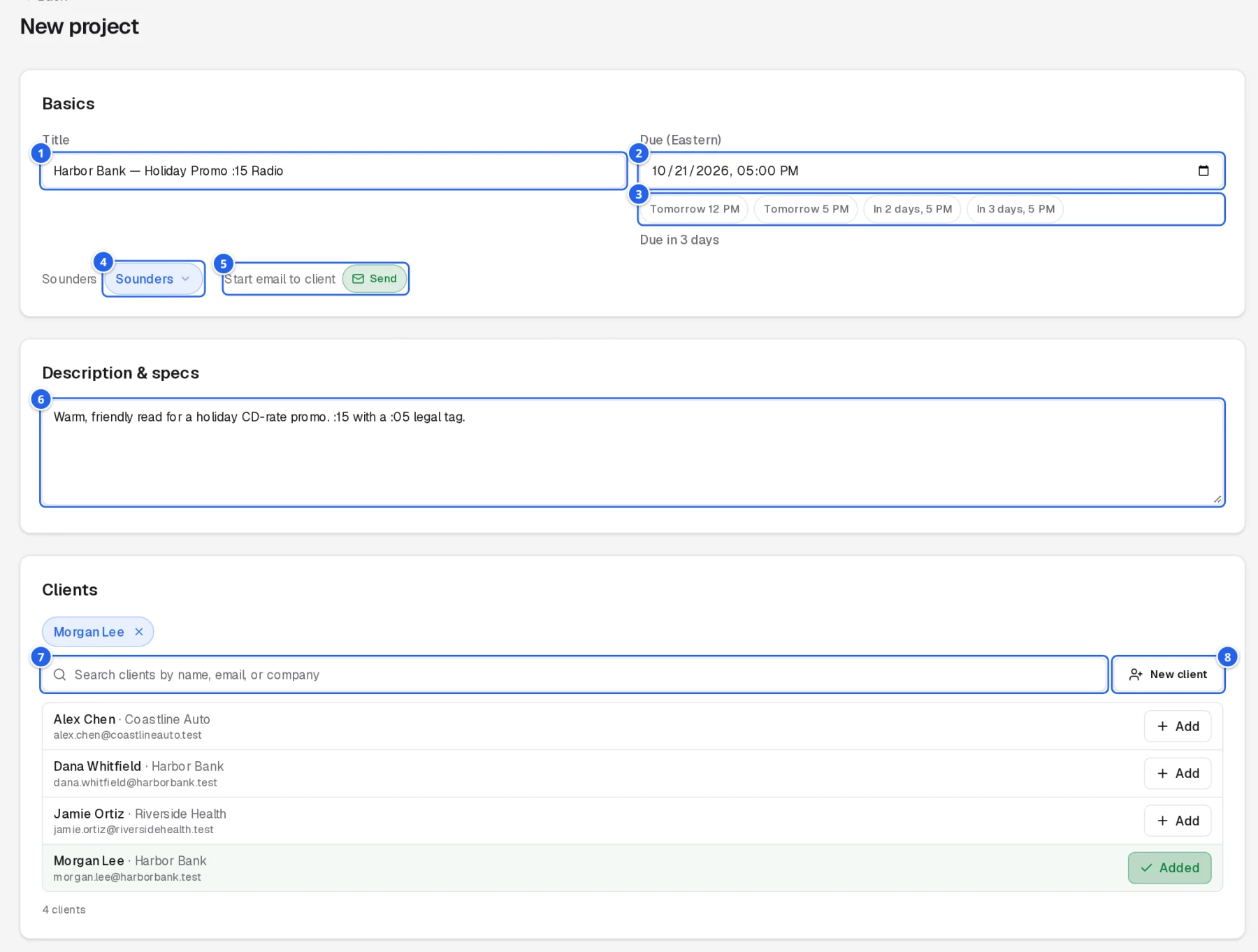
- 1Title: client and spot, e.g. “Harbor Bank — Holiday Promo :15 Radio”.
- 2Due (Eastern): the audition deadline…
- 3…or pick one of the quick times.
- 4Sounders setting for the project.
- 5Start email to client: Send emails the clients the opening email when the project is created; click it to switch to Don't send.
- 6Description & specs: what talent and clients need to know.
- 7Clients: search, then Add the people who should see this project.
- 8New client creates an account for someone who doesn't have one yet (opens a new tab; the list updates when you come back).
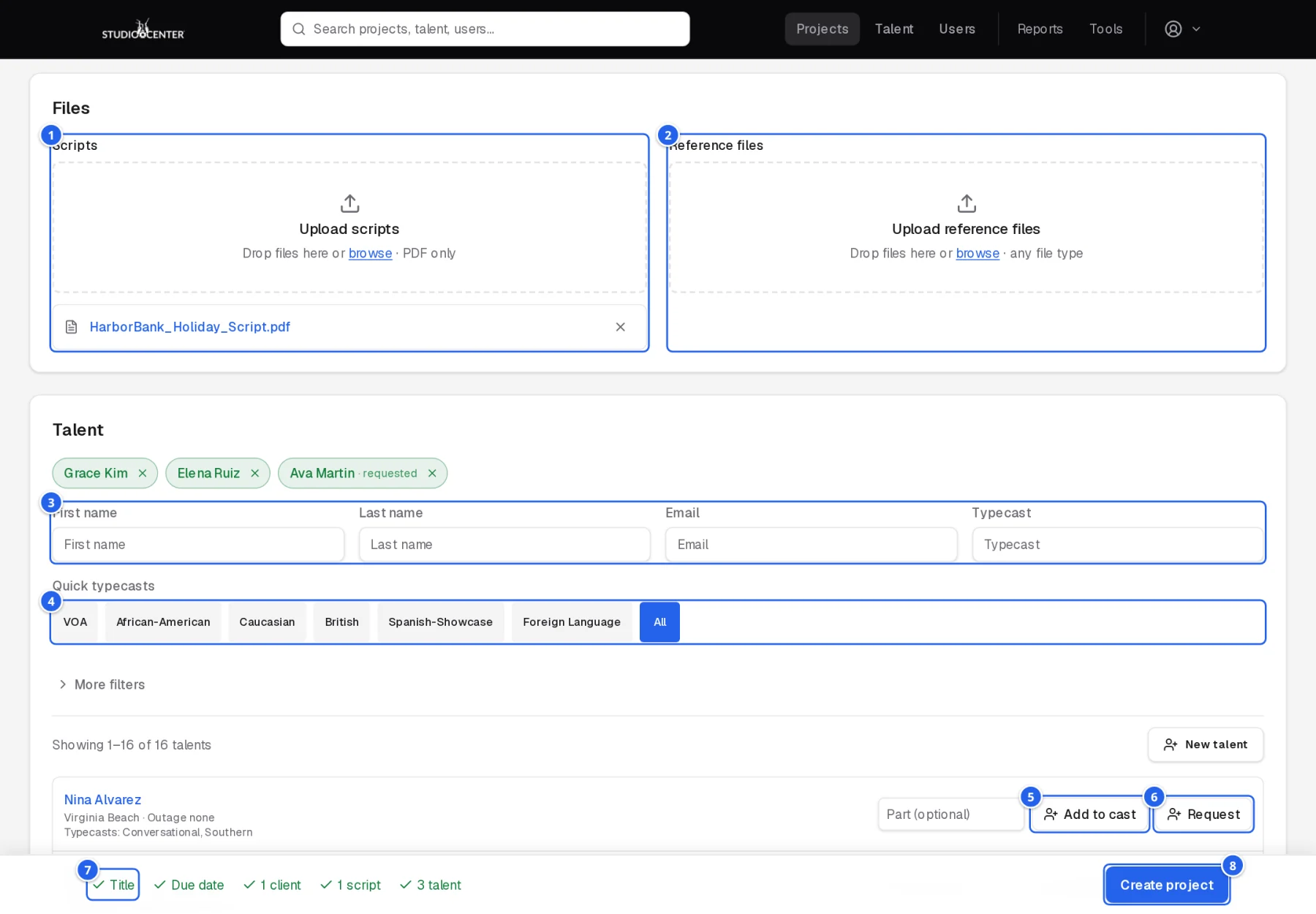
- 1Scripts (PDF only): drop the script here or browse.
- 2Reference files (any file type): spec sheets, previous spots, pronunciation guides.
- 3Find talent by name, email, or typecast…
- 4…with quick typecast buttons, and More filters for gender, union status, age, location, and more.
- 5Add to cast puts someone on this audition. Type a Part (e.g. Lead, Announcer) first if they need one.
- 6Request marks them as asked for by the client.
- 7The bar at the bottom ticks off what's needed: a title, due date, client, script, and talent. Click a missing item to jump to it.
- 8Create project.
What happens when you create it
- Each cast talent gets the audition request by email, and their status becomes Emailed.
- The team is notified of the new project.
- With Start email to client: Send, the clients get the opening email with their sign-in details.
5.The project page
Everything about one project. Use the On this page links to jump between sections.
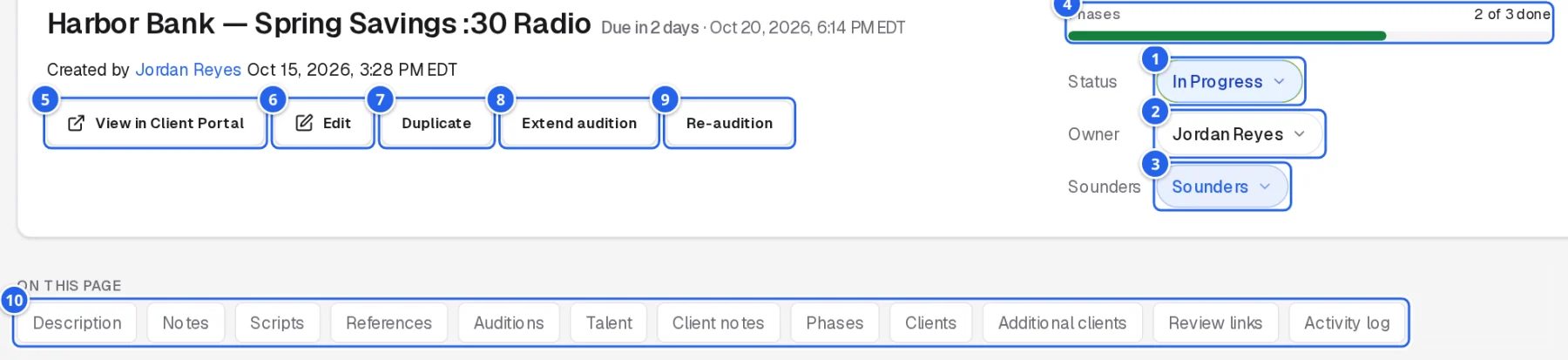
- 1Status: changing it is logged in the notes. Choosing Canceled asks first and notifies the people involved.
- 2Owner: the producer responsible (admins can reassign).
- 3Sounders setting.
- 4Phases progress; click to jump to the phases (see section 11).
- 5View in Client Portal: see exactly what the client sees (opens a new tab).
- 6Edit the title, description, and due date.
- 7Duplicate: copy the project to start a similar one.
- 8Extend audition: move the deadline (below).
- 9Re-audition: start a new project based on this one.
- 10On this page: jump to any section below.
Extending the deadline
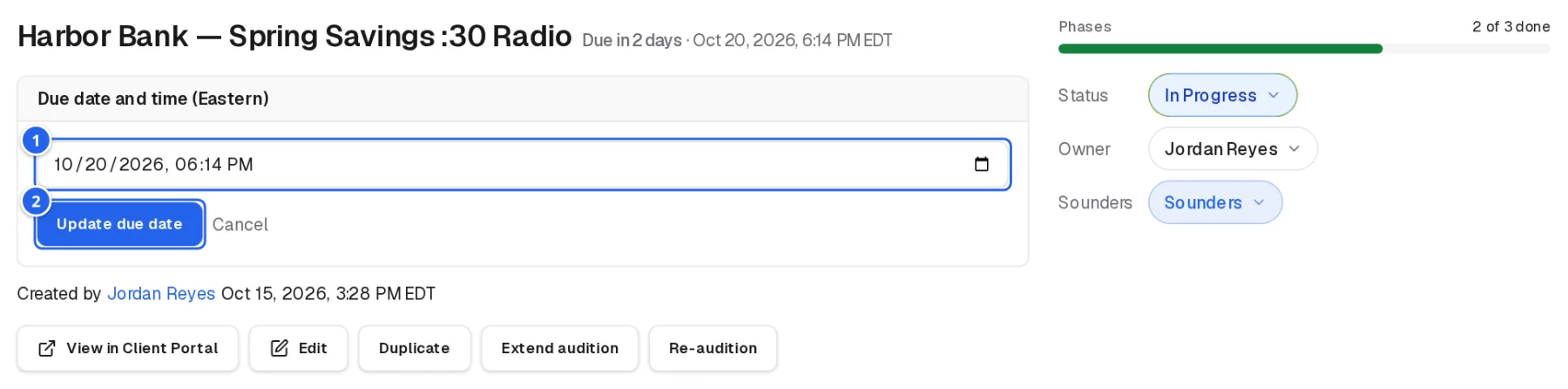
- 1Pick the new date and time.
- 2Update due date: the change is added to the notes and emailed to you as a record. If the project was Closed – Pending Client Decision, this reopens it to In Progress.
Working on a project together
Project pages update live. Above the project's title you'll see who else has it open, and what they're working on (for example Jane Casting · editing the due date or adding talent). When anyone saves a change (status, talent, takes, notes, files, clients, phases) it appears on everyone's screen within a second or so, with a short note such as Jane changed status · just now. You don't need to reload to see each other's work.
Clients' project pages update the same way: new and changed takes, status and notes appear for them as you save them. They don't see who on our team made a change.
6.Notes
Internal notes for the team. Status changes, emails sent, and deadline changes are added automatically, so the notes double as the project's history.
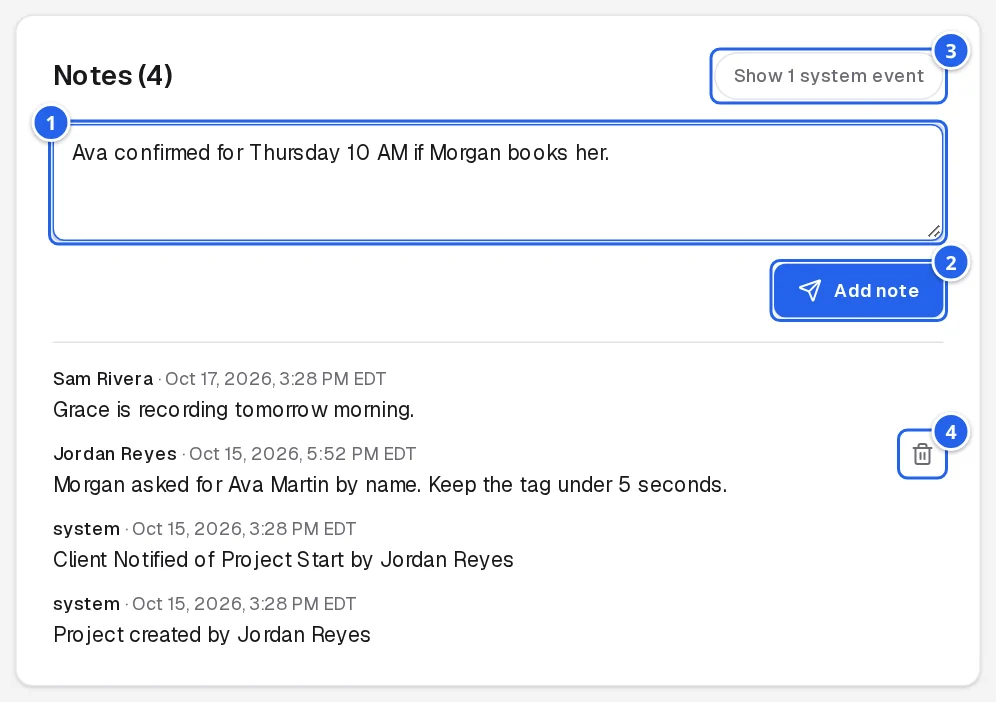
- 1Type a note…
- 2…and click Add note.
- 3Show system events: some automatic entries are tucked away until you ask for them.
- 4Delete a note (it stays visible, crossed out).
Notes from clients appear separately under Client notes.
7.Scripts & reference files
Click the Scripts or Reference files heading on the project page to open it, then drop files in (or click to browse). Scripts are PDFs; reference files can be anything. Each file can be downloaded or deleted from its row.
8.Posting auditions
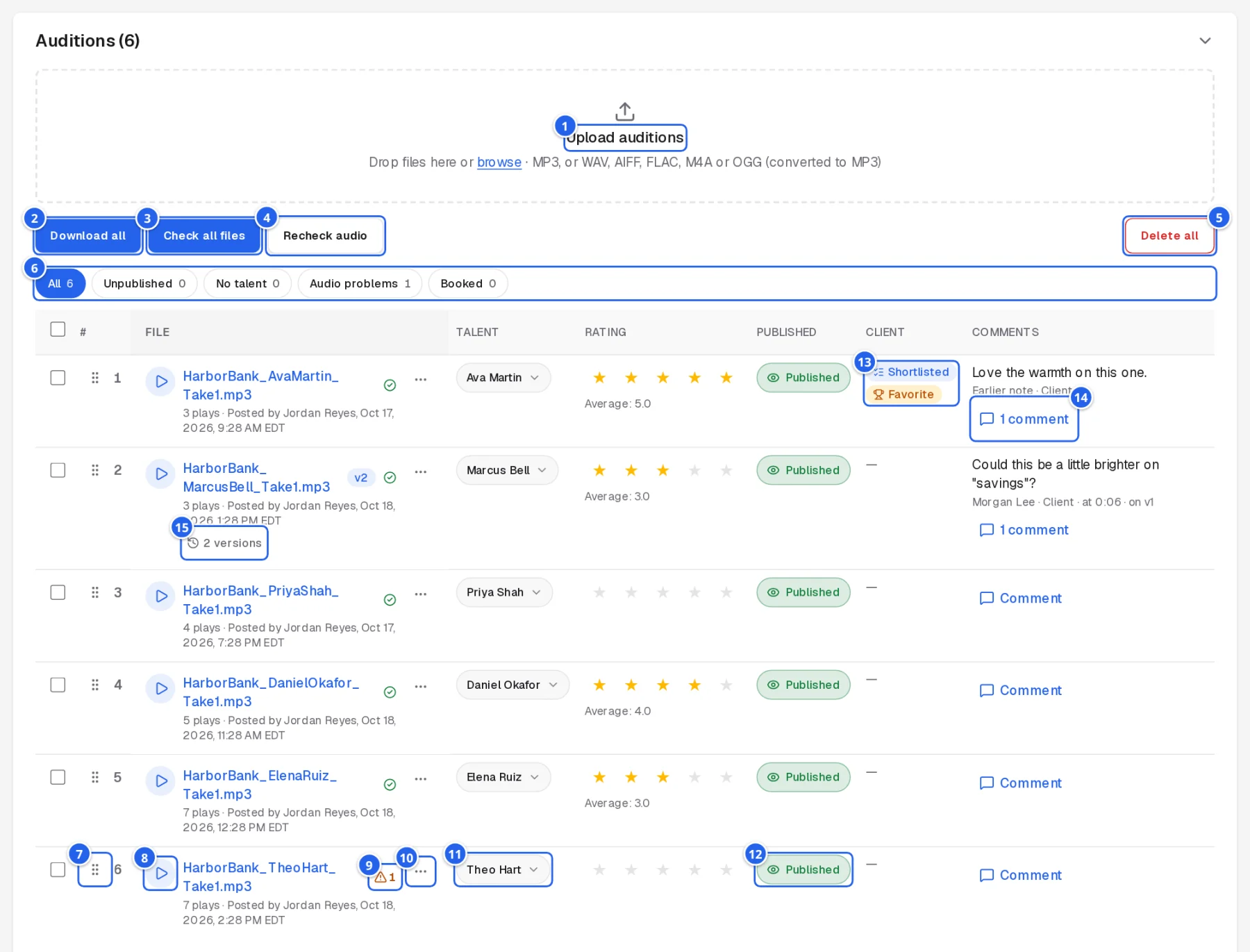
- 1Upload auditions: drop audio files here, or click browse. Several at once is fine. MP3s go up as they are; WAV, AIFF, FLAC, M4A and OGG files are converted to MP3 (192 kbps) in your browser first, keeping the file name. A file with the same name as an existing take becomes a new version of that take (below).
- 2Download all: every take as a zip.
- 3Check all files: confirms each file is really there. Takes that fail are hidden from clients until fixed.
- 4Recheck audio: measures every take again (see below).
- 5Delete all: removes every take (asks first).
- 6Filters: All, Unpublished, No talent, Audio problems, Booked.
- 7# and Drag: published takes are numbered 1, 2, 3 in this order, and clients see the same numbers. Drag a take to move it; the numbers follow.
- 8Play: the player opens along the bottom of the page.
- 9Audio check: a warning sign when a take is too loud or quiet, clipped, has long silence, or runs long for the spot; hover or click for details. A green tick means it passed.
- 10⋯: rename, upload a new version, download, or delete the take.
- 11Talent: who recorded it. The app matches takes to cast talent from the file name; if it shows No talent assigned, pick the talent here.
- 12Published: only published takes appear in the client portal. Click to switch.
- 13Client: whether a client shortlisted, favorited, or booked the take.
- 14Comments from clients and staff; click to read or reply.
- 152 versions: the take has been re-recorded; click to see every version (below).
When a take is assigned to a talent, their status on the project changes to Posted automatically. Tick takes to publish, unpublish, assign talent to, or delete several at once. Each row also shows plays, who posted it and when, and the clients' average rating.
Take numbers
Published takes are numbered 1, 2, 3 from the top of the list, so you and the client can talk about “#4”. New uploads go to the bottom with the next number. Unpublished takes show a dash; they get a number when you publish them. Because the numbers follow the order, dragging takes or publishing an earlier one renumbers the ones after it, for the client too.
New versions of a take
When a client asks for another read, add it to the same take instead of posting a separate one: choose Upload new version from the take's ⋯ menu, or upload a file with exactly the same name as the take (from the upload box or the watch folder). The take keeps its name, number, ratings, shortlist and comments, and the earlier version is kept.

- 1v2: which version is current.
- 2⋯ → Upload new version: pick the new file (any of the formats above).
- 3Hide versions / 2 versions opens and closes the list.
- 4Play an earlier version in the same player, to compare.
- 5Each version, with when it was uploaded and by whom.
- 6Current: the version clients hear first, and the one in downloads, bookings and review links.
- 7Download any version.
Clients see the take as v2 · Updated and can play every version too. Comments are marked with the version they were about (“on v1”), and their marks on the player's waveform show only on that version. The new version is checked for audio problems like any upload. Deleting a take deletes all its versions.
9.Talent on a project
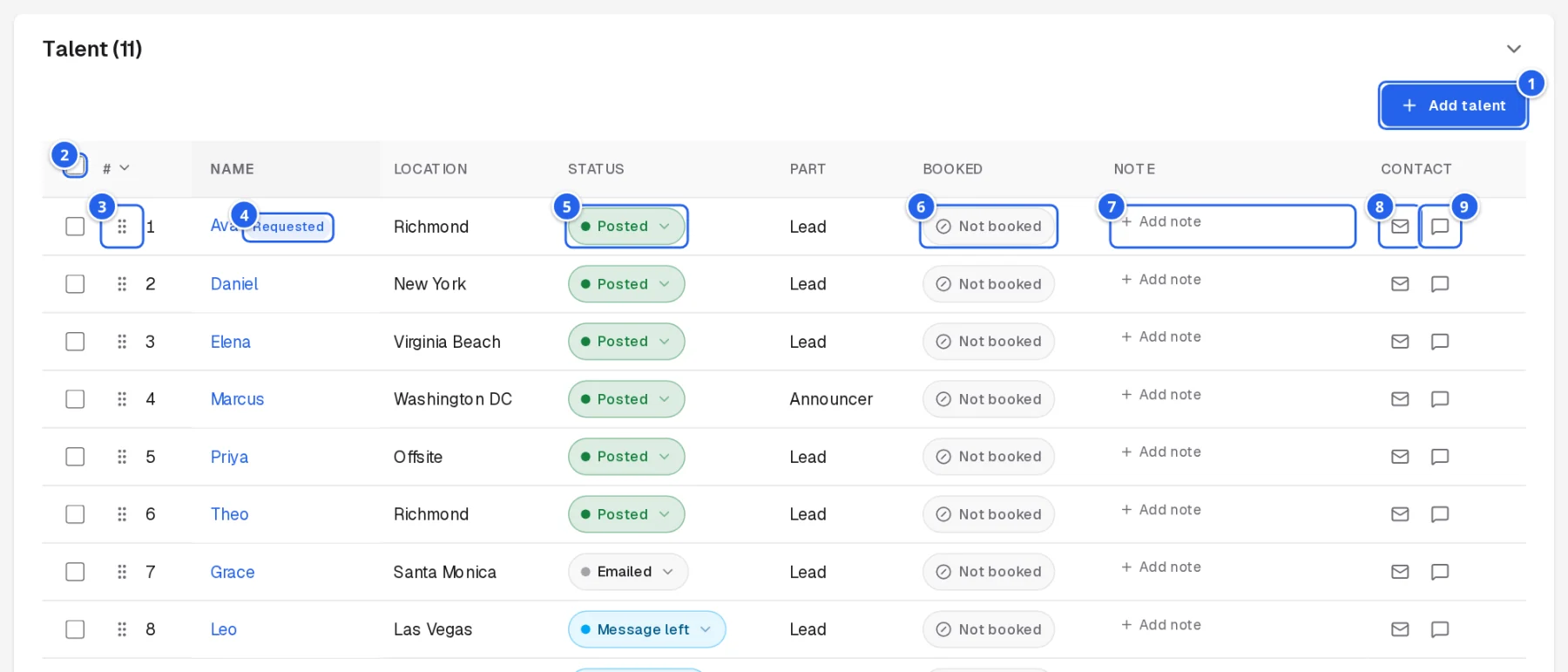
- 1Add talent (below).
- 2Tick talent (or all) to set their status, email, or text several at once.
- 3Drag to reorder.
- 4Requested: the client asked for this talent by name.
- 5Status: where each talent is in the process (below).
- 6Booked: click when the talent is booked.
- 7Add note about this talent on this project.
- 8Email the audition request now (asks first).
- 9Text the audition request by SMS.
Talent statuses
| Cast | On the project, not contacted yet (shows under To call on the call list). |
| Emailed | Audition request sent by email. |
| Message left | Called and left a message. |
| Scheduled | Booked in to record. |
| Out | Unavailable. |
| Received needs to be posted | Audition received; post it. |
| Posted | Audition posted (set automatically when a take is assigned). |
| Not Posted (Bad Read) | Received but not usable. |
| Missed / Canceled | Didn't make the deadline, or dropped. |
Adding talent
Click Add talent above the table. A search panel opens; click Done when you've finished.
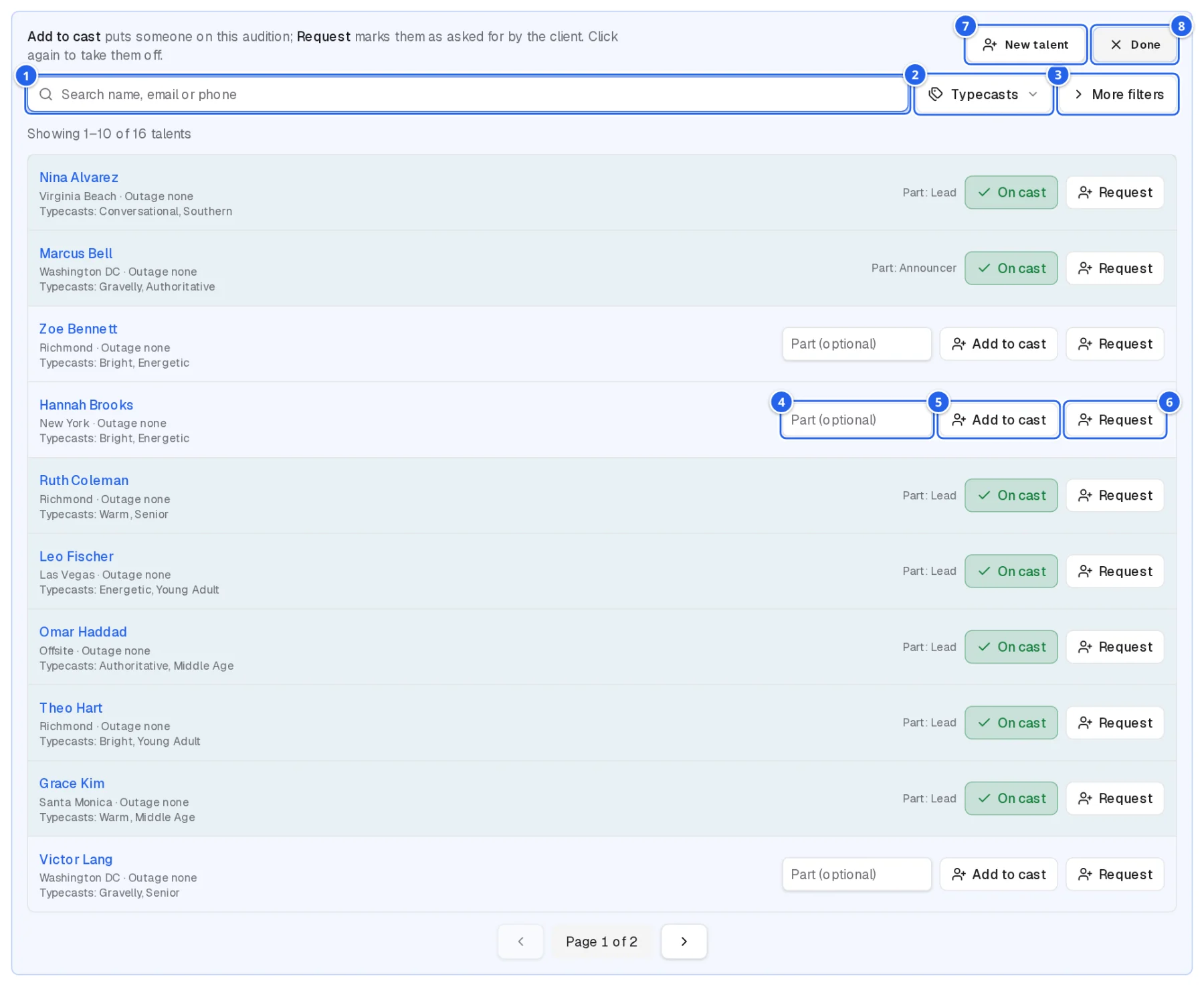
- 1Search by name, email, or phone.
- 2Typecasts: pick one or more.
- 3More filters: gender, union status, age, location, and more.
- 4Part (optional), e.g. Lead or Announcer.
- 5Add to cast; it then reads On cast (click again to take them off).
- 6Request: added as requested by the client.
- 7New talent adds someone to the roster (opens a new tab).
- 8Done closes the panel.
10.Clients & client emails
Main clients review the project in the portal and get the project emails. Additional clients can see the project and its takes but get no project emails.
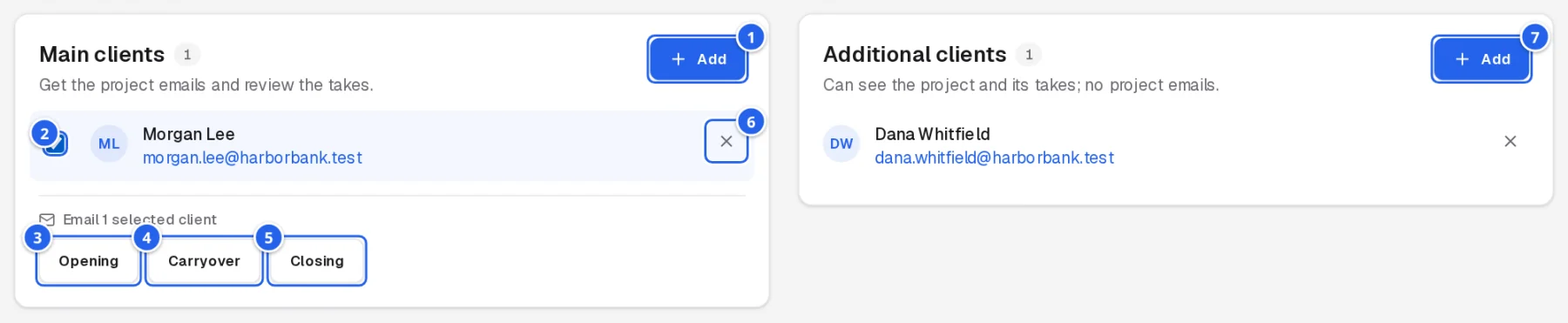
- 1Add: search accounts by name, email, or company, or create a new one.
- 2Tick the clients to email.
- 3Opening: the project has started, with their sign-in details.
- 4Carryover: auditions are uploaded and ready, with sign-in details.
- 5Closing: casting is closed; thanks for their business.
- 6Remove someone from the project.
- 7Add additional clients the same way.
Each email asks for confirmation before sending and is recorded in the activity log; the buttons show how many times each has gone out. Clients who've turned on Do not email me are skipped, and you're told who.
11.Phases
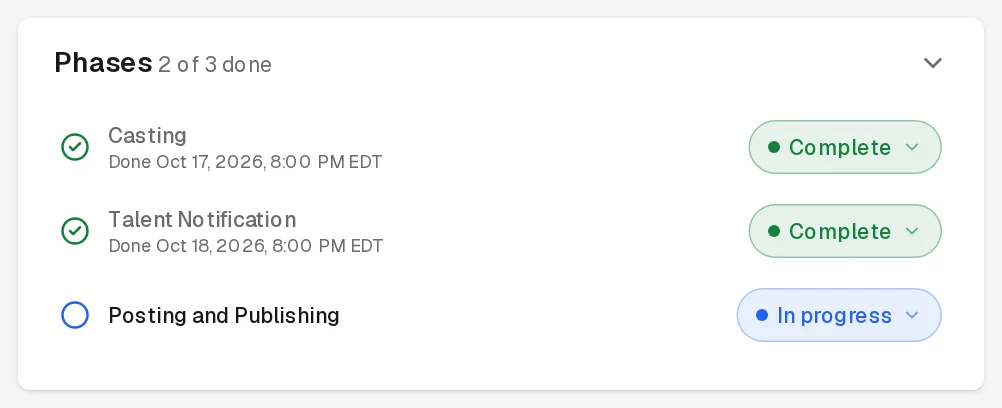
Track the project's progress through Casting, Talent Notification, and Posting and Publishing. Set each phase's status from its menu; the progress bar in the header and on the projects list follows along.
12.Review links & activity
Review links on the project page work like the clients' Share for review (see the client guide): a view-only link to the published takes that expires after the days you choose. Use it for an agency or a client's colleague who has no account; Turn off stops a link working. The Activity log at the bottom lists who did what on the project.
13.Talent roster & typecasts
Talent in the header lists every voice on the roster.
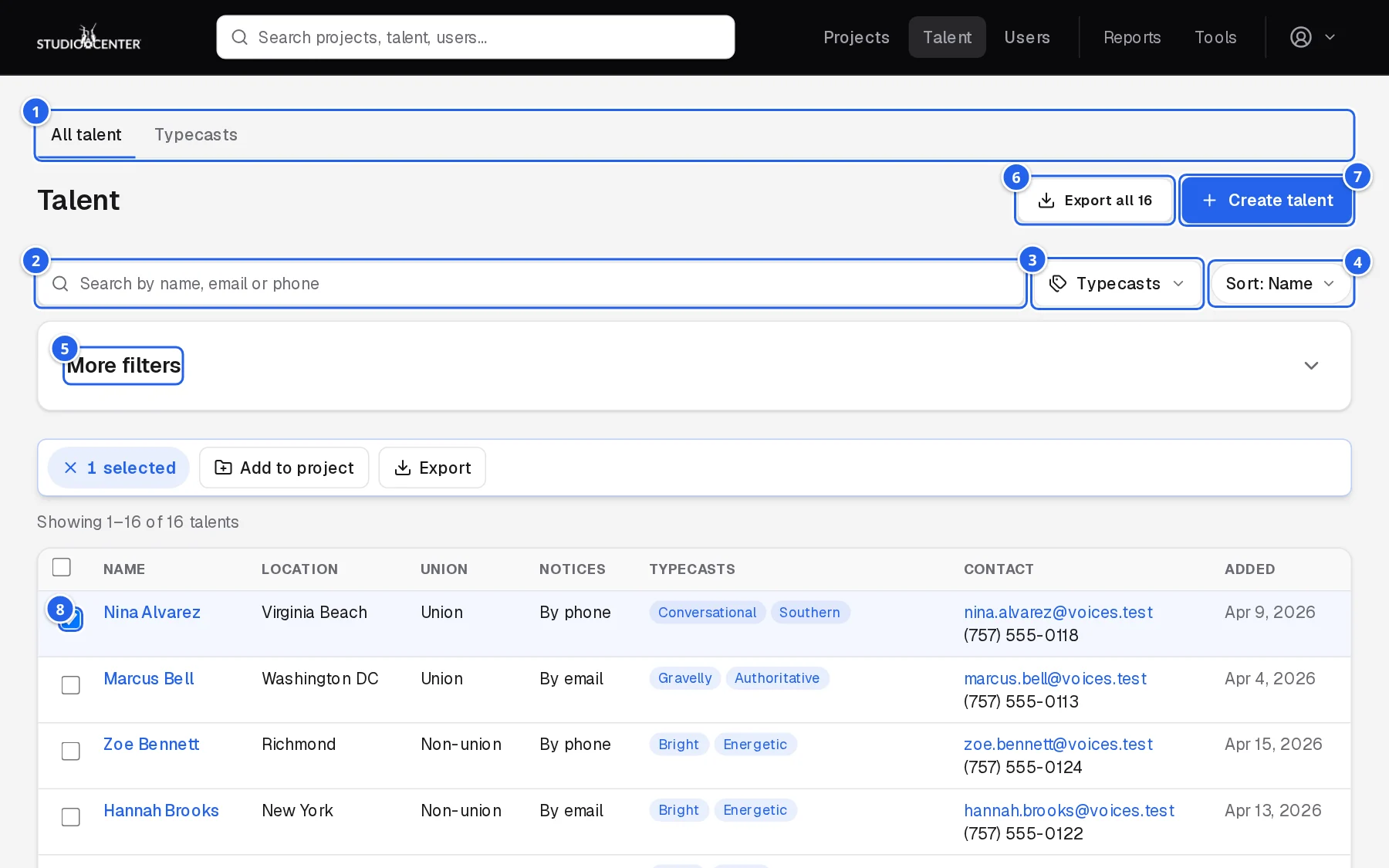
- 1All talent and Typecasts tabs.
- 2Search names, emails, and phone numbers (however the number is typed).
- 3Typecasts: pick one or more.
- 4Sort by name or recently added.
- 5More filters: gender, union status, age, location, exclusivity, and more. Saved searches show as chips.
- 6Export all matching talent as a CSV (or just the ticked ones).
- 7Create talent.
- 8Tick talent to Add to project or Export them.
Open a talent to see their details, projects (with each project's status and due date), and contact log; Edit uses the same form as Create talent.
Typecasts are the tags used to describe voices (e.g. Warm, Conversational, British). Each one shows how many talent have it. Rename it and the talent are updated too; drag to change the order; add several at once by typing them separated by commas.
14.Users
Users in the header lists every account, with All, Clients, and Staff tabs and one search over names, emails, companies, usernames, and phones. Click a name to open the user's profile, which lists a client's projects.
15.Tools
Tools in the header opens the tools, grouped by what they're for:
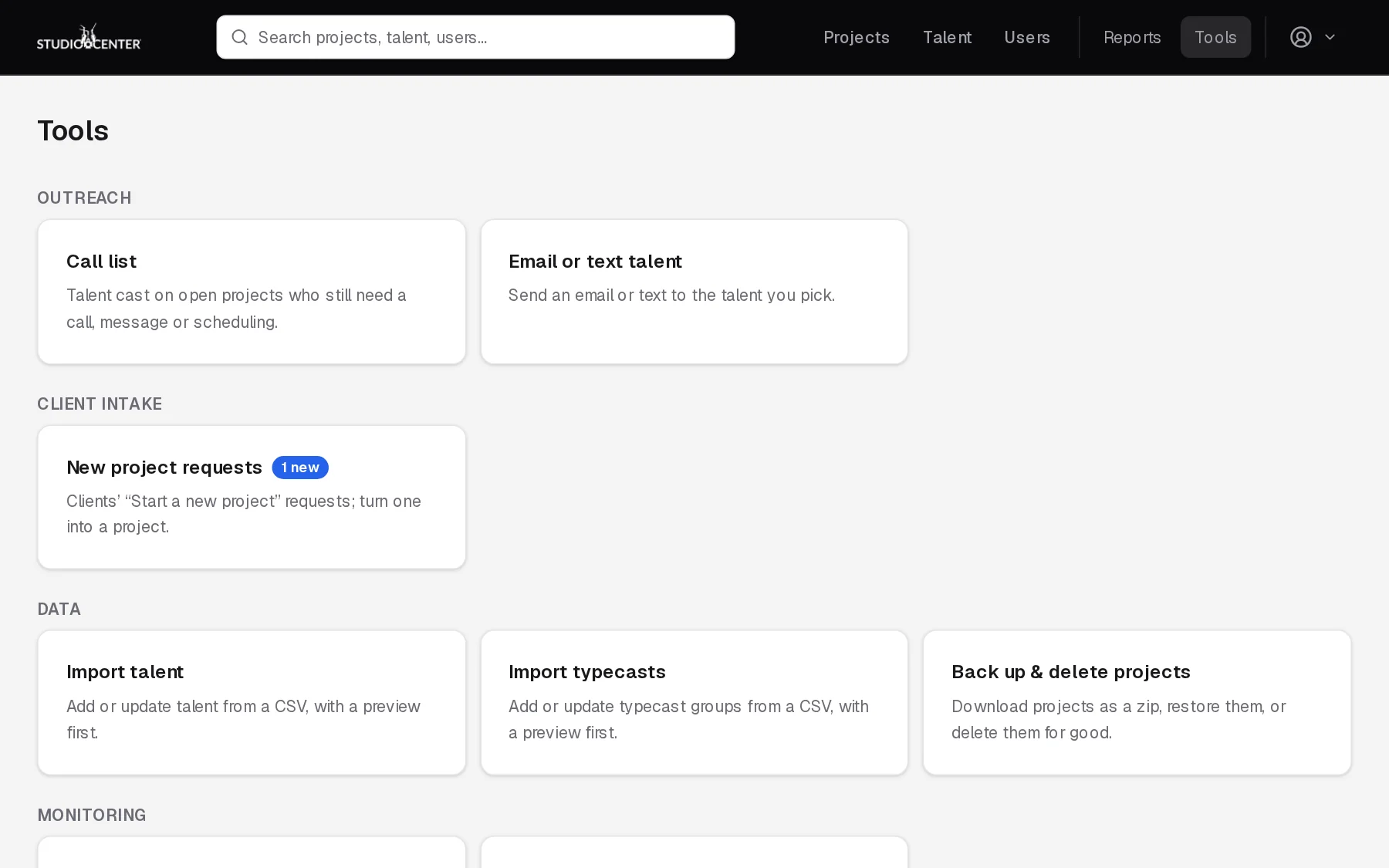
| Call list | Talent cast on open projects, in tabs: To call, Messages left, Scheduled, and Emailed. Search, sort, change a status in one click, add notes, and tap a number to call. |
| Email or text talent | Pick who gets it, write the message, then review and send. Send a test to me first if you like. |
| New project requests | Clients' “Start a new project” requests, with an unread count. Create project turns one into a project. |
| Import talent / Import typecasts | Add or update from a CSV. A preview shows what will be new, updated, or skipped (and why) before anything is saved. |
| Back up & delete projects | Download projects as a zip, restore a backup, or delete them for good (you type the number of projects to confirm). |
| Logs / Ops dashboard | What happened, when, and by whom; system health. For admins. |
Call list
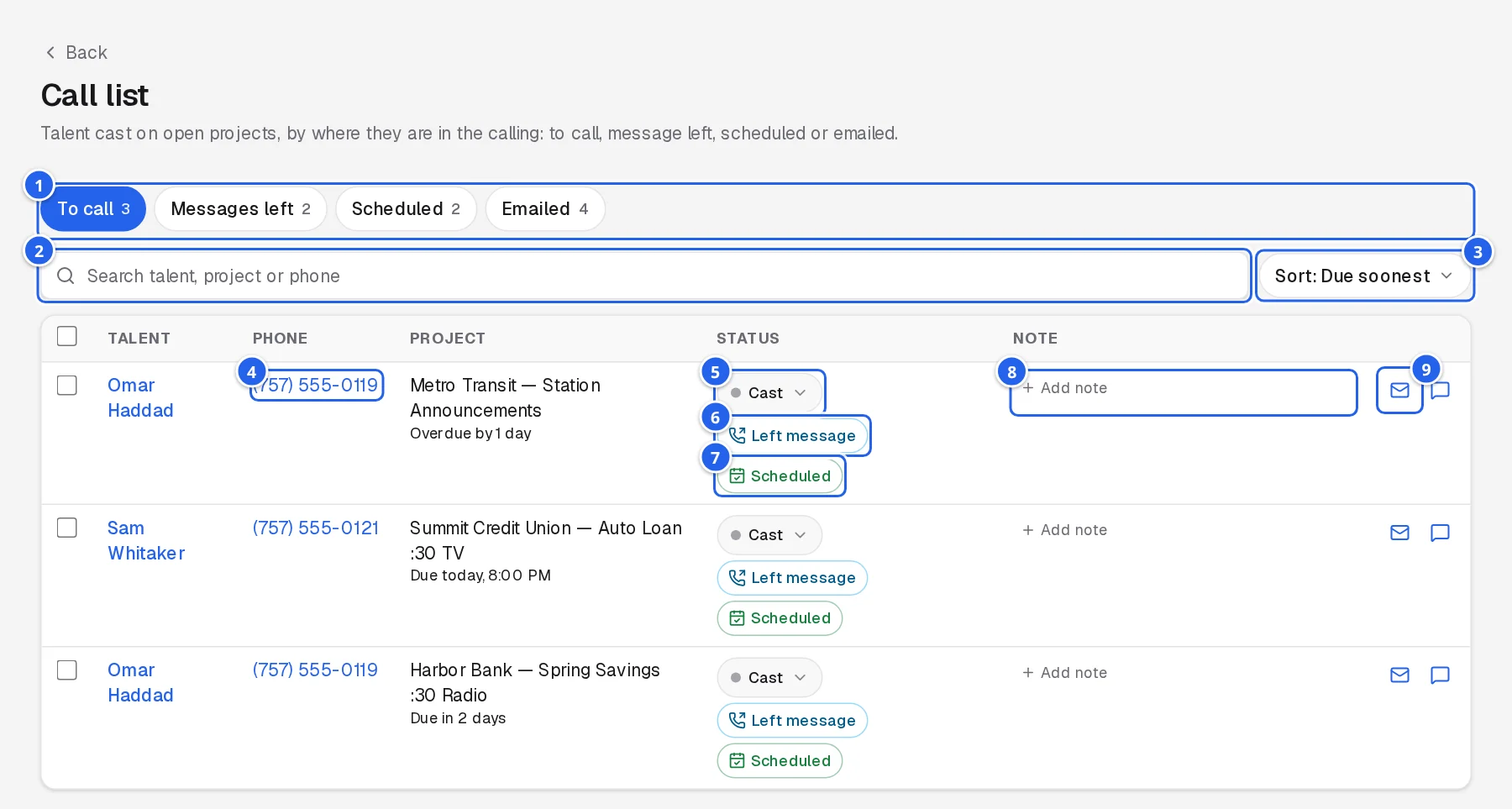
- 1Tabs with counts.
- 2Search talent, project, or phone.
- 3Sort.
- 4Tap the number to call.
- 5Status…
- 6…or one click for Left message…
- 7…or Scheduled.
- 8Add note.
- 9Email or text the talent.
Email or text talent
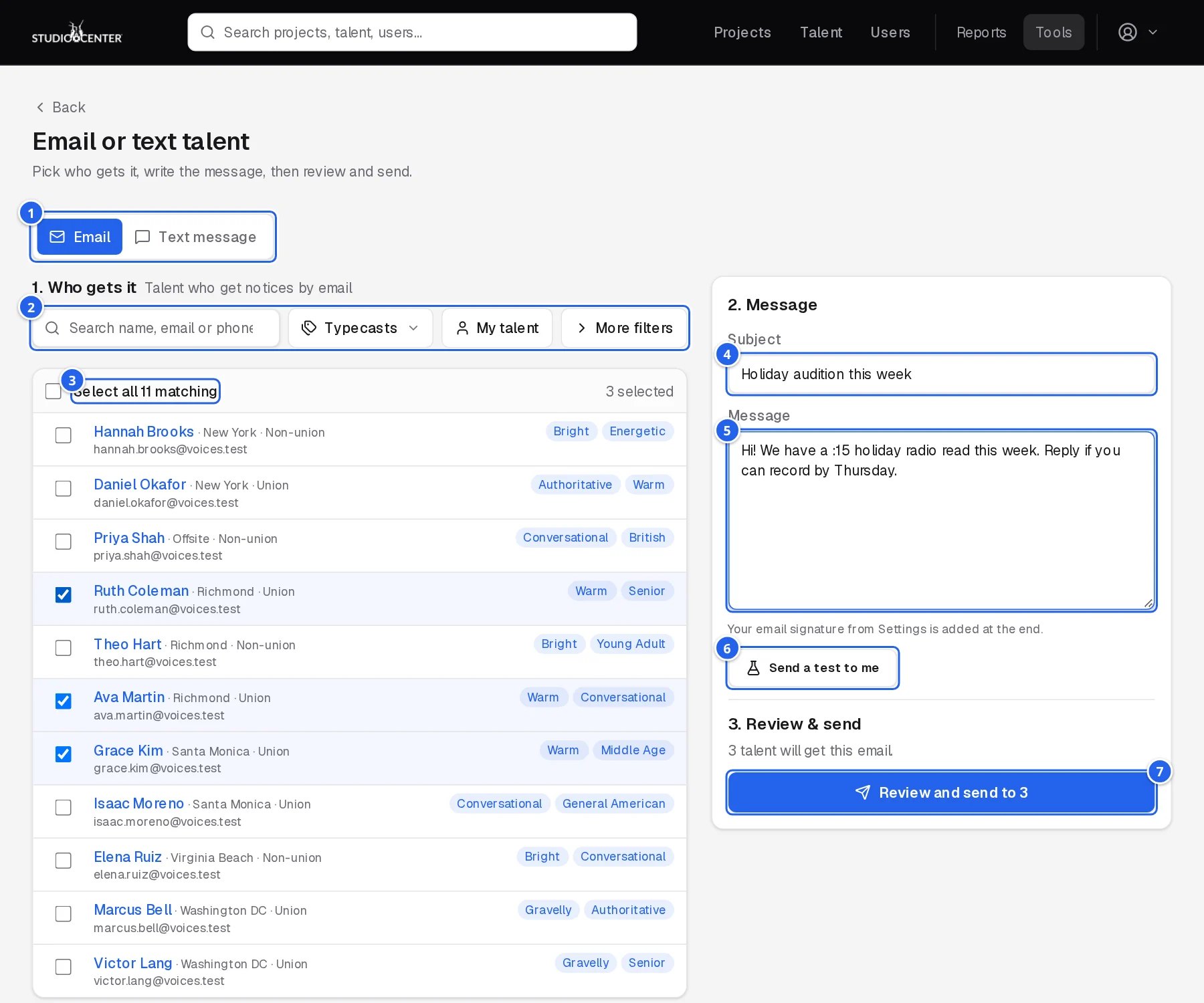
- 1Email or Text message.
- 2Who gets it: search, typecasts, My talent, and more filters.
- 3Select all matching, or tick people one by one.
- 4Subject.
- 5Message. Your email signature from Settings is added at the end; texts show the characters and parts used.
- 6Send a test to me.
- 7Review and send shows who it goes to before it does.
New project requests
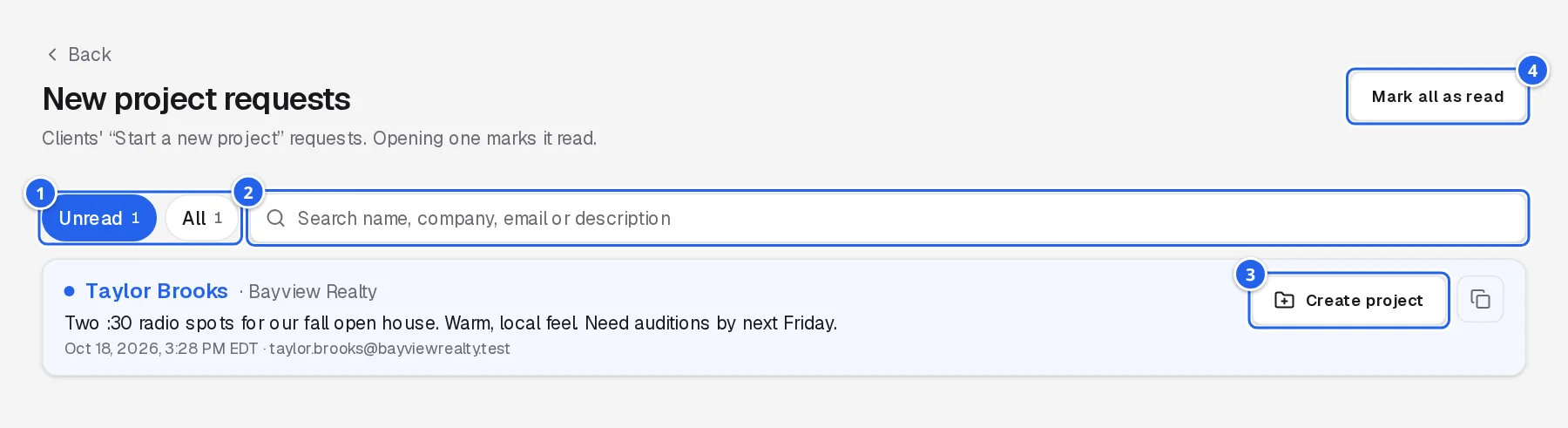
- 1Unread / All. Opening a request marks it read.
- 2Search names, companies, emails, and descriptions.
- 3Create project from the request.
- 4Mark all as read.
Anyone can send a request from studiocenterauditions.com/new-project, signed in or not, so expect some from new clients. A bot check keeps spam out.
16.Reports
Reports in the header opens the reports. Each has quick date ranges (This week, Last month, This year, or Custom) that stay in the address, so you can bookmark or share a report, and Export CSV.
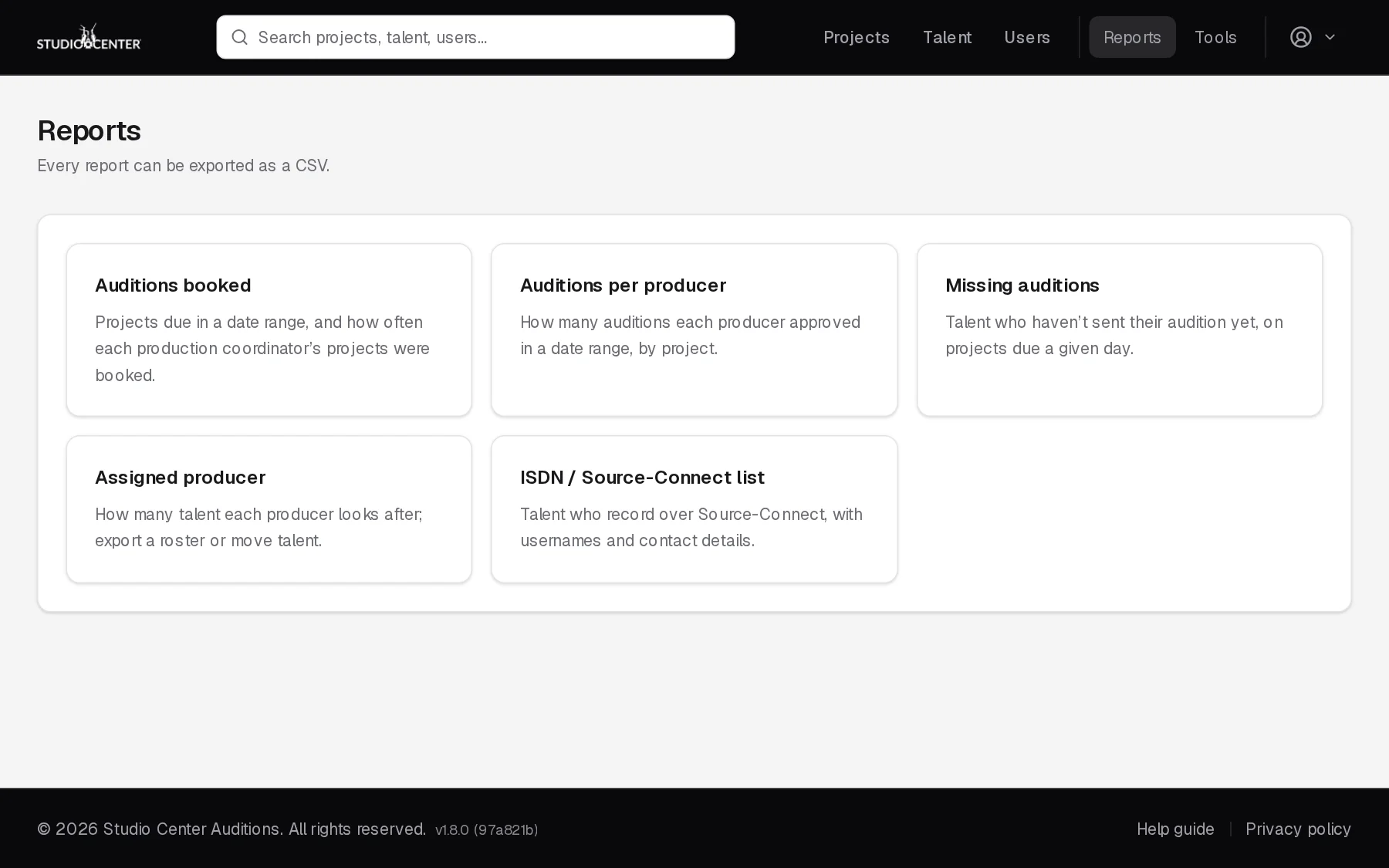
| Auditions booked | Projects due in a date range, and how often each production coordinator's projects were booked. |
| Auditions per producer | How many auditions each producer approved in a date range, by project. |
| Missing auditions | Talent who haven't sent their audition yet, on projects due a given day (today to start). |
| Assigned producer | How many talent each producer looks after. Open a producer to see their talent, export them, or tick some and Change producer. |
| ISDN / Source-Connect list | Talent who record over Source-Connect, with usernames and contact details. |
17.Your settings
Settings in the account menu holds your profile and email signature, Do not email me (no project or notification emails; password resets still arrive), Two-step sign-in (see section 1), Deadlines in your calendar (a private calendar link of project due dates for Google Calendar, Outlook, or Apple Calendar), and API keys for the watch-folder uploader.
18.Automatic emails
The app sends these on its own, in Eastern time:
| When | To | |
|---|---|---|
| Pre-close summary | About 2 hours before a project is due | The project owner, copied to the team: who's posted, not called, not posted, and out. |
| Main clients check | At :01 and :31 past each hour, for projects due within 30 minutes that have no main clients | The project owner. |
| Missing auditions | Monday to Friday at 4:00 PM and 9:30 PM | The team: talent still outstanding. |
| Booking confirmation | When a client books takes | The client, copied to the owner and the team. |
| Client notes | When a client saves a project note | The team. |
| New project request | When anyone sends the “Start a new project” form | The team, with any scripts attached. |